

| Home | Products | Clubhouse | ProShop | Tour |
|
||||||
|
|
|||||
|
||||||
| Golf Courses | Upload Course | Manuals | Feedback | FAQ | Support | Common Questions/Answers |
There are at least ten (10) very good reasons to make IntelliGolf your #1 choice!
Have a Great Round!
Visit our Intelli-eStore now!
Top
Uploading (or updating) a course into the IntelliGolf course database is easy to do via the IntelliGolf desktop software included in the full Birdie edition, Eagle edition, or Desktop edition. We have simply cut & paste instructions by clicking here. All IntelliGolfers will appreciate your time and efforts. Over 27,000 courses have been uploaded into the IntelliGolf database using the method described. Have a Great Round!
Top
IntelliGolf version 10.2 (or above) is required to access the IntelliGolf course database. To upgrade to our latest version 10.2 (or higher) series of products, please click here. To read more about our in-revision course database access policy please
Note: Wirelessly downloading courses from the IntelliGolf database usually requires that you (customer) have a wireless "data access plan" from your carrier (i.e. cell phone service provider). Please contact your carrier for more information.
Top
Please click here for more information on the IntelliGolf course database access policy.
Top
Please click here for more information.
Top
Please click here for current upgrade information and pricing.
Top
Please click here for more information.
Top
"Yes" if you have your "full live" original of the IntelliGolf version 10.x or 11.x desktop and smartphone software.
If you have a "full live" original of the IntelliGolf version 10.x or 11.x software (i.e. not an "upgrade/update" or "trial" version), it is as simple as copying your originally downloaded "full live" original IntelliGolf software (ig*.msi or ig*.zip) Windows-based installation file(s) to your new/existing PC, double-clicking on it/them, and the moving your players, courses, and rounds database over to the new PC. BTW - Our "trial" edition software will usually have a "t" in the 3rd position of the file name and an "upgrade" will have "up" in it. Neither of these file types are transferrable/reinstallable.
Note: If you did not make a back-up copy (or save) your original IntelliGolf "full live" version 10.x or 11.x software, you will need to purchase a new original of the IntelliGolf software with a new registration code by clicking here. It's on Special. Then, go to Step 2.
Step 1. If you are currently running IntelliGolf version 10.x (or later) use the "Find" command in Windows (Start, Find, Files or Folders) enter "ig*.msi" or "ig.zip" into the Search box to find the original IntelliGolf installation file. When you find the ".msi" or ".zip" installation file, move that file to your new PC (via CD, network, etc). Once that file is on your new PC, simply double-click on that file and the IntelliGolf installation process will restart (.msi format) or the zip file will be unpacked and then click on the .msi files. Within minutes, IntelliGolf version 10.x will be installed onto your new PC. Since the original IntelliGolf installation file has already been associated with your unique registration code, re-installing IntelliGolf from your original file should work fine for you.
Note: If the "ig*.msi" or "ig*.zip" file you find has a "t" in the 3rd position (e.g. igt*.msi) or "up" in the 3rd and 4th position, you need to locate the original ig*.msi or ig*.zip file that does not have a "t" or "up" in it for "live" version. Please install the original ig*.msi or ig*.zip installation file first, and then the install the Upgrade file after the original installation file is installed on your new PC. If you cannot find your original full version installation file, and/or don't want to re-install all of your previous upgrades, then please visit www.intelligolf.com/estore.asp to get a full new original of the IntelliGolf software. It's on Special. That will save you a lot of time and money :-)
Step 2. Next copy the IntelliGolf players, rounds, and courses (desktop) database from the old PC to your new PC. The name and location of the IntelliGolf database file is found in the lower right hand corner of the IntelliGolf desktop application. The database file is normally found in the "C:\Program Files\Intelligolf\ directory and is called "golf.gdb" by default (i.e. unless you have manually changed the name). Copy the IntelliGolf database file from the old PC to the new PC and then open it on the new PC using the menu command "File | Open…" in the IntelliGolf desktop software. You should be all set. Now IntelliGolf should be on your new PC including your existing players, courses, and rounds database. Congratulations!
Top
If you are running the IntelliGolf Eagle, Birdie, or Desktop edition version 9.x-11.x software "and" your existing database (DB) is still intact and useable, the IntelliGolf version 10.x-11.x (Replacement Copy - see www.intelligolf.com/replace.asp) software will most likely be able to find/use/recover your IntelliGolf courses, rounds, and players database :-). While we can't make any guarantees that your DB is still intact and useable (as that is dependent upon the condition of your PC), following the process below is surely worth trying :-). IntelliGolf will do its best to try to find/use/recover your older/existing IntelliGolf DB.
First, find the name and location of your existing IntelliGolf DB file. To do this, start up the IntelliGolf desktop edition software on your older/existing PC. The name and location of the IntelliGolf database file (e.g. C:\Program Files\IntelliGolf\golf.gdb) is found at the bottom of the IntelliGolf desktop application from the Courses tab. Write down that information. If the IntelliGolf software is no longer running on your older/existing PC, your IntelliGolf DB file is normally found in the "C:\Program Files\IntelliGolf\ directory and is called "golf.gdb" by default (i.e. unless you have manually changed the name). Did you find it? Next, if you are changing PCs, simply copy/move the IntelliGolf DB file from your old PC to the new PC and place it in the same directory with the same name (e.g. C:\Program Files\IntelliGolf\golf.gdb). Then, start up the IntelliGolf desktop software on your new PC. Using IntelliGolf's menu command (top) "File | Open…" please open up your golf database (e.g. C:\Program Files\IntelliGolf\golf.gdb). If you are not changing PCs, please ensure that your IntelliGolf desktop software is pointing to the correct DB using the "File | Open" menu item. If your DB opens, you should be all set and ready to golf again :-). Congratulations! If it does not open, then unfortunately your DB has been lost and/or has been corrupted. As such, you will need to re-enter your rounds and/or start entering new rounds from this point forward.
Note: Eagle Smartphone and Par edition customer's database is located on your smartphone (i.e. not on your desktop/laptop). As such, if you purchase/install the full Eagle or Birdie edition version 10.x software, these products' smartphone components will attempt to find your IntelliGolf courses, rounds, and players DB on your smartphone. If your smartphone DB is still intact and useable, it will appear on your IntelliGolf smartphone software. Then, you can synchronize your smartphone to your PC (i.e. select: Overwrite PC database with handheld/smartphone database) and it should be uploaded onto your PC.
Top
The IntelliGolf desktop component calculates an IntelliGolf Handicap. This is not an official USGA Handicap Index, nor does it use the USGA formula. It is however a good measure of your ability and can be used with confidence in your sidegame wagering. For more information on why IntelliGolf does not calculate an official USGA Index please see the IntelliGolf Handicap page.
The IntelliGolf Handicap is calculated using the best 10 rounds from the last 20 rounds. The number of strokes over 72 (average par for most courses) is then averaged from those 10 rounds and multiplied by 90%. If there are less then 20 total rounds then 1/2 of the rounds are used in the calculation.
Top
The IntelliGolf Eagle edition software has always included the Birdie edition's 1) handheld/smartphone software, 2) Windows desktop software, and 3) synchronization software, and the Eagle GPS Option's 4) GPS and Bluetooth handheld/smartphone software. When you order the Eagle edition (or Eagle Upgrade) software you will receive the Birdie edition software and the Eagle GPS Option software. That way, you'll get everything you need in one order :-). Simply install the Birdie edition software (first) for your particular platform and then the Eagle GPS Option software (second) for your particular platform. When done, you will find that the Birdie edition's desktop, handheld, and synchronization software has been installed onto your Windows-based PC and handheld/smartphone, and the Eagle GPS Option's software has been added to your handheld/smartphone providing "GPS and Bluetooth" support. If you want to read more about any of these products please visit www.intelligolf.com/products.asp
Top
Yes, you can easily export Round results from the IntelliGolf Birdie or Eagle edition's (included) desktop software into popular spreadsheet programs (e.g. Excel). Start up the IntelliGolf desktop software. Click on the Rounds tab. Click on the round that you would like to export so that it is highlighted. Right-click on the highlighted round and then click on the "Copy" menu item. You will be provided with a secondary screen to select the items that your would like to export (e.g. players, scores, putts, etc). Check the items that you would like to export and then click on OK. Those items have now been exported into the Windows clipboard. Next, start up your spreadsheet program. Click on one of the open boxes to highlight it. Right-click and then select "Paste". Your round data will be imported into your spreadsheet. Easy!
Tip: From the IntelliGolf desktop software, you can select a range of rounds by using the Shift key and your mouse, or select a set of non-contiguous rounds by using the Ctrl key and your mouse. That way you can export a wide variety of players and statistics for additional analysis via your spreadsheet program. Have a Great Round!
Top
On your question, if you purchased the IntelliGolf "version 10.x or 11.x" software, please see Step 1 below. If you purchased an older version of the IntelliGolf software (e.g. version 8.x-9.x) please see Step 2 below.
1. Using the "Find" command in Windows (Start, Find, Files or Folders) enter "ig*.msi" (Eagle edition, Eagle GPS Option, and Birdie edition software) or "ig*.cab, .prc or .jar (Eagle OTA edition) to try to find the original IntelliGolf installation file. When/if you find that file, simply double-click on that file and the IntelliGolf installation process should restart. Since that file has already been associated with your unique registration code, re-installing IntelliGolf from your original file should work fine for you. Note: If the "ig*.xxx" file you find has a "t" in the 3rd position (e.g. igt*.msi) then that is the IntelliGolf "trial edition" file. You will need to locate the ig*.xxx file that does not have a "t" in the 3rd position for the "live" version.
2. If the IntelliGolf installation file is not present on your PC, and you did not make a back-up copy as recommended, IntelliGolf was associated with a unique registration code when downloaded. As such, you will need to get a new original of IntelliGolf with a new registration code. However, the good news is that one of our resellers has just implemented a special Lost Copy Replacement Program (LCRP) for a reduced price. This Program is only available to our registered IntelliGolf users. Please click here to visit the LCRP web page.
Have a Great Round!
Top
If you already have an IntelliGolf Customer Support or Database Access account set-up, the best way to update (or change) your email address is to visit our Support web page and perform the following steps:
1. Click on the Support tab at the top of http://www.intelligolf.com/
2. Click on "Support Center" (left column)
3. Click on "Log-out"
4. Create a New Account with your new email address :-)
If you do not already have a Customer Support or Database Access account, please perform the following steps:
1. Click on the FAQ/Support tab at the top of http://www.intelligolf.com/
2. Click on "Support Center" (left column)
3. Create a "New Account" with your new email address :-)
Have a great Round!
Top
If you own the IntelliGolf Birdie, Eagle Pro, or Desktop edition software, they all come with the IntelliGolf "desktop" software that creates your "personal golf database" on your PC. That database, usually called "golf.gdb", holds all of your cumulative "rounds, courses, and players." To back up your database, please perform the steps listed below.
1. If you own/use the IntelliGolf "Birdie" or "Eagle Pro" edition software, please perform a "synchronization" operation (as usual) to upload your "courses, rounds, and players" from your smartphone/handheld to the IntelliGolf desktop software. Then, proceed to Step 2. If you own/use the (standalone) IntelliGolf "Desktop" edition software, please proceed to Step 2.
2. Start-up the IntelliGolf software on your desktop (PC) and left click on the "Rounds" tab (i.e. next to Courses, Players, and Statistics tabs).
3. At the bottom of the Rounds screen you will see the name and location of your IntelliGolf database (e.g. C:\Program Files\Intelligolf\golf.gdb).
4. Using Window's navigation (e.g. Start, Computer, Program Files, IntelliGolf) to navigate to the directory containing your golf.gdb file (i.e. or to whatever file name/location is shown at the botton of the Rounds screen).
5. Use the Window's "Copy" function (e.g. mouse "right click" on the golf.gdb file name, then "left click" on Copy) to copy the golf.gdb into Windows cut/hold buffer.
6. Use Windows naviagation (again) to navigate to another folder (i.e. very important) on your PC, CD, or thumb drive.
7. Once in the "other folder", use the Window's "Paste" function (e.g. mouse "right click" then "left click" on Paste) to paste the copied golf.gdb file to that directory.
You now have now successfully made a "back-up" copy of your rounds, courses, and players database file. It's that easy :-)
Note 1. If your "golf.gdb" file becomes corrupted (or lost) in the future, simply Copy/Paste the back-up copy of your golf.gdb file back into the C:\Program Files\Intelligolf\ directory. You'll be up and running again in no time :-)
Note 2: If you own the IntelliGolf Par or Eagle Smartphone/Value/OTA "standalone" edition software, they do not come with the IntelliGolf desktop software. As such, there is no way to back-up your golf database from your handheld/smartphone. You would first need to purchase either the Birdie or Eagle "Pro" edition software and synchronize it with your IntelliGolf handheld/smartphone software. Then, you can make a back-up copy of your rounds, courses, and players database as listed above.
Top
Yes, IntelliGolf version 10.0 (and above) supports the Windows Vista and Windows 7 (32 bit) PC-based operating systems. To purchase IntelliGolf version 10 (and above) please click here. Note: Existing IntelliGolf customers can "upgrade/update" to version 10 (and above) via the Upgrade tab at the top of www.intelligolf.com
Top
If you would like to receive a refund for your IntelliGolf software purchase, and if our FAQs were not able to assist you (via the Support tab at the top of www.intelligolf.com), you will need to contact the "reseller" that you used to purchase the IntelliGolf software (see your "order confirmation" email). Each reseller has their own refund policies and requirements. Depending upon your circumstances, your reseller should be able to assist you with your return as they would have your credit card and contact information (i.e. which we do not receive).
For your convenience, below are links to various popular IntelliGolf resellers and their refund policies.
Handmark.com
http://handmark.custhelp.com/app/answers/detail/a_id/789/session/L3NpZC9aSTh6RUktag%3D%3D/sno/0
Blackberry AppWorld (see page 8)
http://na.blackberry.com/eng/support/BlackBerry_App_World_FAQ.pdf
I hope this information helps.
Top
Please visit the IntelliGolf eStore (http://www.intelligolf.com/estore.asp) by clicking here and see the "Eagle SP-to-Pro Upgrades" listed towards the top of the light green section.
Top
IntelliGolf installs and runs on 32 and 64 bit Windows (standard) operating systems.
Top
There is a situation in prior versions of IntelliGolf that could make a counter in our IntelliGolf database too large. We have fixed that issue in version 9.0 (and above) of the IntelliGolf software. You are receiving the message at the completion of the IntelliGolf sync because IntelliGolf has detected that the counter is too large.
There are two options to fix this issue.
You can create a new IntelliGolf database and start using it. To create a new IntelliGolf database start IntelliGolf on your desktop computer and select the menu item "File | New...".
Or you can repair your existing IntelliGolf database using the following steps:
#1 - Start IntelliGolf on your PC. From the rounds tab select all the rounds and then select the menu item "File | Export...". Save the exported information to a file of your choice.
#2 - Next select the menu item "File | New..." and create a new IntelliGolf database with name something like "golf2.gdb".
#3 - The new database will now be open and select menu item "File | Import...." and import the exported information from original database. This will recreate your existing database.
#4 - Close IntelliGolf so everything gets saved.
#5 - Do an IntelliGolf sync to handheld. A message will pop up about desktop and handheld IntelliGolf databases not matching. Select the option to overwrite the handheld database.
These steps will create a new database with your existing information repairing your database.
Top
Yes. Please click here.
Top
Thank you in advance for uploading and/or updating courses in the IntelliGolf course database. IntelliGolfers worldwide will appreciate it.
If you believe a course listing is incorrect (e.g. new tees, incomplete listing, etc), you can download it to the IntelliGolf desktop edition software included in the full Eagle edition (Pro model), Birdie edition, or Desktop edition software, correct/update it, and resubmit it under the "same course name" (which will replace the existing listing). There is more detailed information on how to upload a course via the Courses tab at the top of www.intelligolf.com. Once you are on the Courses web page, please click on the "Upload course" tab towards the top of the Courses web page for more information :-). We usually update the Courses database every week with new/updated listings.
Note: If the course's "name" is incorrect (and you want to correct it), then you can download the course to the IntelliGolf desktop software, correct it, and resubmit it under a "new course name" (which will create a new course listing). Then, simply provide us with the older/incorrect listing's "courseId" number and request that we "delete" the incorrect course. If you would like us to "delete" an older (or duplicate) course, please send an email to sales@intelligolf.com with the "courseId" number and ask us to "delete" that course. To find the "courseId" number for a particular course, go into IntelliGolf course database listing (via the Courses tab at the top of www.intelligolf.com), click on your country's name (to list the courses in your country), right click on the course that you would like us to delete, then left click on Properties, and you will see something like dlcourse.gdx?courseId=23929". If you send us the "courseId" number (e.g. 23929) for the courses that you believe should be deleted, we can delete it for you. Please send that information to "sales@intelligolf.com" :-).
We appreciate your efforts as will all IntelliGolfers worldwide :-)
Top
First, go to www.intelligolf.com/estore.asp . Next, click on the "Buy Now" button for the IntelliGolf software product or upgrade for your platform (e.g Eagle edition for the Blackberry, etc). That will take you to Handmark's (reseller) web site. In the upper left hand corner, you will see a device image (i.e. handheld/smartphone) that has been pre-selected (i.e. default) for your platform. To change the "default" device to your "actual" device, please click on "change device" under that image. Next, you see a couple boxes next to "View devices by". You can either pick "Select Manufacturer" (i.e. device manufacturer) or "Select Provider" (i.e. carrier). You can pick either one. Then, you should be provided with a list of devices offered by that manufacturer or carrier. Click on "Select this device" to select your device. (BTW - If your device is not listed, you can select "any" device for your platform. The IntelliGolf software does not care which device you select :-). Once you have successfully selected a device, you will be taken back to Handmark's category web page for software relating to that device/platform. Next, click on the "Shopping Cart" line item in the upper right hand corner. That will take you back to Handmark's ordering web page to complete your order :-). Have a Great Round!
Top
To move your existing rounds, courses, and players database from one PC to another (i.e. older PC to a new PC), please start up the IntelliGolf desktop software on your older PC.
Note: The IntelliGolf desktop software came bundled with the Birdie edition, Eagle edition (i.e. not the Eagle OTA edition), and the Desktop edition software.
Next, click on the Rounds tab in the IntelliGolf desktop software. At the bottom of the Rounds screen, you will see the name and location of the IntelliGolf database file. The database file is normally found in the "C:\Program Files\Intelligolf\ directory and is called "golf.gdb" by default (i.e. unless you have manually renamed it). Copy the IntelliGolf database file from the your older PC to a back-up diskette or CD.
Next, install the IntelliGolf version 9.x software onto your new PC. Note: If you do not have your original "full version" (i.e. not an Upgrade) of the IntelliGolf version 10.x software, or have lost your version 10.x software, or have a previous older version (e.g. version 7.x-9.x) of the IntelliGolf software, please visit www.intelligolf.com/replace.asp for further information.
Once the IntelliGolf version 10.x software is installed on your new PC, copy the "golf.gdb" file from your back-up media to the C:\Program Files\Intelligolf directory on your new PC. From the Rounds screen (in the desktop software on your new PC) click on "File | Open…" and select the "golf.gdb" file that you just moved to your new PC. IntelliGolf should recognize your existing "golf.gdb" file and use it from now on. You should be all set :-) The new IntelliGolf version 10.x software should now be on your new PC including your existing players, courses, and rounds database. Congratulations!
Top
When using the IntelliGolf Eagle Smartphone edition to enter a new course or new tees, it is best to enter the tees in "alphabetical" order (e.g. Blue, Green, Red, White, Yellow, etc) even though this may not be in "distance" order. Entering tees for a new course in alphabetical order supposedly reduces the chances that a new course will be rejected in the Course Upload process when using the IntelliGolf desktop edition software. For more on uploading courses into the IntelliGolf Course database, please click here.
Top
Typically this happens when the customer purchased/installed the Birdie Upgrade Edition version 10.x-11.x software and did not purchase/install the (associated) Eagle Smartphone Option version 10.x-11.x software. As such, the Birdie edition version 10.x-11.x software gets installed on the customer's PC (desktop) but the version 10.x-11.x software does not get installed on the customer's handheld/smartphone (i.e. version 9.x remains on the handheld/smartphone). The easiest way to fix this is to simply purchase/install the Eagle Smartphone Option version 10.x-11.x software onto your handheld/smartphone. Then, everything should work fine for you. Have a Great Round!
Top
This message is usually because you have a "very old" version of the IntelliGolf Desktop and/or Birdie edition running on your PC that your much newer IntelliGolf software can not remove. As such, you should use Windows' "Add/Remove Programs" or Windows' "Programs and Features" routines to remove/uninstall the much older IntelliGolf software. While using these routines should not erase your IntelliGolf rounds, courses, and players database, we always recommend that your "back-up" your database before removing/uninstalling the IntelliGolf software. That way you'll be safe :-). There is more on how to "back-up" your DB above (i.e. in the General section of our FAQs).
Note: If you cannot remove the IntelliGolf Birdie (or Desktop) edition software after trying Microsoft's normal uninstall routines (above), then you might want to try Microsoft's "msicuu2.exe" program. There is more information on this free download at http://www.softpedia.com/progDownload/Windows-Installer-CleanUp-Utility-Download-18442.html/ or you can search on "msicuu2.exe".
Top
To create a new rounds, courses, and players database file for synchronizing with your new smartphone, using the IntelliGolf Birdie edition (desktop) software, click on File and New. In the the File Name field, type in the desired name of your new database (e.g. Golf2014) and press Save. If you have Administrator priviledges the new database can be saved in the normal C:\Program Files\IntelliGolf directory. If not, it can usually be saved in your Documents folder. Once Saved, you will see the new database file's location listed at the bottom of the Birdie edition's screen. Note: In some of the other FAQs above, there instructions on how to move, rename, transfer your database file to other locations and/or PCs. Have a Great Round!
Top
The IntelliGolf software for Android-based smartphones is SHIPPING NOW! Please click here. The IntelliGolf Eagle Smartphone software runs on Android-based smartphones that are running the Android operating system (OS) versions 2.2 and higher (e.g. 3.x and 4.x). As such, if your Android-based smartphone is running OS v2.2 (or higher), IntelliGolf should work great with your smartphone :-)
Top
IntelliGolf "version 10.x" customers are entitled to free "in-revision" upgrades for the "same product" and "same platform" within the "version 10.x" series of products. IntelliGolf "version 9.x" customers are entitled to free "in-revision" upgrades for the "same product" and "same platform" within the "version 9.x" series of products, and so on…. Please click here for more information on IntelliGolf, Inc's upgrade policy.
Since IG4AN is "new product" on a "new platform" IntelliGolf "version 10.x" (and earlier) customers are not entitled to a free upgrade to the IG4AN "version 11.x" software. However, once you have purchased the IG4AN "version 11.x" products, you will be entitled to FREE "in-revision" upgrades for the "same product" and "same platform" within the "version 11.x" series of products.
That said, as part of the IG4AN introduction process, we are providing all IntelliGolf customers with significant "Time Limited Introductory Savings" on the IG4AN software. For example, if you purchase the IG4AN version 11.x "Eagle Smartphone" software today, it is only $14.99 (vs $29.99). That's a 50% SAVINGS. If you purchase the IG4AN "Birdie" edition desktop companion software today, it is only $14.99 (vs $39.99). That's a 60% SAVINGS. If you purchase the IG4AN "Eagle Pro Bundle" software today (i.e. our most popular software), it is only $29.98 (vs $69.99). Note: The Eagle "Pro Bundle" software is a bundle of the Eagle Smartphone edition software + Birdie edition desktop companion software all-in-one!
During our "Time Limited Introductory Special" you can purchase a "fully functional original" of the IG4AN "version 11.x" software for less than our traditional upgrade price. Plus, you will enjoy all future IG4AN version 11.x "in-revision" upgrades for FREE for the "same product" on the "same platform". Please click here to purchase your IntelliGolf for Android product(s) today. SAVE 65%!
Top
This is usually because the IntelliGolf software is being downloaded from a reseller other than Google's Play store (i.e. which is OK :-). To override the block, tap on "Settings" on the Install blocked window and check the checkbox on the "Application" settings screen for "Unknown sources". You will receive another "Attention" message noting that you take responsibility for any damage or data loss that may be caused by installing applications outside the Market. Tap OK. Once you have completed the IntelliGolf installation, you can uncheck the checkbox for "Unknown Sources" in Application settings to block future applications outside the Google Play store, or you can leave "Unknown Sources" checked for allow you to download/install other applications purchased outside the Google Play store. Your choice :-)
There is also more on this at http://www.androidcentral.com/allow-app-installs-unknown-sources
Top
It's really easy. Simply use your Android-based smartphone's "Menu" button (or soft key) and "Return Arrow" button (or soft key) to bring-up the many options and preferences available in the IntelliGolf software. For example, from IntelliGolf's main "Play" screen, if you press the "Menu" button you will be provided with the option the start a "New Round", view existing "Rounds", access/download "Courses", view "Players", start "Sync", or (via the "v More" soft key) set Distance formats (e.g. yards or meters), set Date formats, Currency symbols, etc. Give it a try. To return to a previous screen, simply press the Return Arrow button (or soft key).
Also, try "long pressing" on a Course name, or a Player's name, or a Round, and/or other IntelliGolf items. For example, "long pressing" on a Course name will let you Edit, Delete, Start Round, or Call Course. Long pressing on a Players Name will let you View, Delete, or select Club preferences for that golfer :-). Long pressing on a Round will let you View, Resume, Post Round, view Scores, and Delete the Round. It's easy with IntelliGolf for Android!
Top
The answer is generally "Yes" if you are currently running the IntelliGolf Eagle or Birdie edition version 9.x or 10.x software and follow the instructions listed below :-)
1. First, synchronize your existing rounds, courses, and players data on your existing handheld/smartphone (e.g. BB, Nokia, etc) with your existing IntelliGolf Eagle or Birdie edition desktop software (as usual).
2. Make a back-up copy of your existing rounds, courses, and players database on your PC. Please click here for database back-up instructions.
3. Install the new IntelliGolf Birdie edition version 11.x software onto your PC.
4. Install the new IntelliGolf Eagle Smartphone version 11.x software onto your Android-based smartphone.
5. Finally, please click here and follow the "Sync" instructions described in our "Sync" FAQ :-).
Top
The Birdie edition (click here) is the desktop companion software for the Eagle Smartphone (click here) software. The two products work/sync together to track all of your cumulative rounds of golf, courses, players, statistics, graphs, and charts.
Top
Yes, for IntelliGolf version 9.x and 10.x customers :-) Simply visit the Intelli-eStore (www.intelligolf.com/estore.asp) and purchase the IntelliGolf Eagle "Pro Bundle" software for Android (top section). During our Introduction Special, you will SAVE 50% (less than the normal IntelliGolf upgrade price) and will receive a full new original of the IntelliGolf Eagle Smarthone edition version 11 software and a full new original of the IntelliGolf Birdie edition desktop companion version 11 software. If you are currently running the IntelliGolf version 9.x or 10.x smartphone/desktop software for another platform (e.g. Blackberry, Nokia, Palm, etc), the new IntelliGolf Birdie edition version 11 will "try" to locate your existing IntelliGolf rounds, courses, and players database and convert it to the new version 11 format. Then, when you synchronize your new Birdie edition software to your new Android-based smartphone software, your selected rounds, courses, and players should be wirelessly synchronized to your smartphone. There is more on wireless synchronization in our Android FAQs below :-).
Version 8.x (or ealier) customers: The new IntelliGolf version 11 software may or may not be able to find and convert the much older version 8.x (or earlier) rounds, courses, and players database to the new version 11 format. Unfortunately, your version 8.x (or earlier) software may be too old to convert based upon IntelliGolf, Inc's policy of supporting one (1) major release is arrears. Your version 8.x software is at least 6 years old and at least 3 releases in arrears :-( There is more on this by clicking here. That said, the new IntelliGolf version 11 software will at least be able to set up a new rounds, courses, and players database for you so that you will be current from this point forward. And, it might even be able to find your database for you. It's worth a try :-)
Top
The answer is generally "Yes" :-) if you have purchased/downloaded/installed the 1) IntelliGolf Premium edition smartphone software for Android and the IntelliGolf Birdie edition desktop companion software for Windows, 2) have a wireless router installed on your network, 3) have wireless access between your Android-based smartphone (i.e. Wi-Fi set to "On") and your Windows-based PC, and 4) your firewall does not prevent the IntelliGolf smartphone software from communicating with the IntelliGolf desktop software. Normally, this all works perfectly. But, in some instances a few items needs to be set/checked manually as further described in our FAQs below.
Note: For existing IntelliGolf customers that are running previous supported versions (e.g. version 9.x-10.x) of the IntelliGolf software on their handheld/smartphone "and" on their Windows-based desktop (PC), the new "version 11.x" Birdie edition software (i.e. included in the Eagle "Pro Bundle" software) will look for your existing rounds, courses, and players database (i.e. usually called "golf.gdb") and try to convert it to the new version 11.x format. While this is not guaranteed (i.e. depending upon what version of the older IntelliGolf software you are running), it usually works a very high percentage of the time for version 8.x (and above) customers. Once the new version 11.x Birdie edition software has found and converted your database to the new version 11 format, you should be able to "wirelessly synchronize" your PC-based database to your new IntelliGolf Eagle "Smartphone" edition version 11.x software (i.e. included in the Eagle "Pro Bundle") by following the FAQ steps below :-).
IMPORTANT: Existing IntelliGolf customers should 1) always back-up your existing rounds, courses, and players database on your PC "before" performing your first Android-based synchronization. Please click here for back-up instructions. And, exising customers should 2) select "PC to Phone Data" when performing (at least) your "first synchronizing" between your PC database and your SP database. Tip: In the IntelliGolf Birdie edition (desktop) software, remember to "left click" (mouse) just to the left of the rounds, courses, and players that you want to synchronize to your smartphone. That will set the "sync bit/icon" for you :-) Then, select "Sync" on your Android-based smartphone by pressing the Menu button (on your SP) from IntelliGolf's main Play/Exit screen. Wireless Sync should start within 10-15 seconds. Have a Great Round!
Top
The IntelliGolf "Pro Bundle" comes complete with a) our latest IntelliGolf for Android smartphone software and b) our latest IntelliGolf Birdie edition desktop and wireless synchronization software :-) As such, "Sync" should work perfectly provided your PC and Android-based smartphone can connect via your wireless router (see FAQ above) and your Settings are correct. Below are some items to check/set.
1. Make sure that you have the latest IntelliGolf Birdie edition "version 11.x" desktop software installed on your Windows-based PC.
2. Make sure that the IntelliGolf Birdie edition desktop software is "up & running" on your Windows-based PC.
3. Open the IntelliGolf Birdie edition desktop software and click on View, Options, Device, to make sure that the Device selected is "Android Smartphone".
4. Make sure that you have a "wireless router" installed and connected to your Windows-based PC and Android-based smartphone.
5. Make sure that "Wi-Fi" is "checked" (green) on your Android-based smartphone.
Note: To set Wi-Fi to "On" (from your smartphone's main screen), press the Menu button, select Settings, select Wireless & networking, and turn Wi-Fi to "On" by checking the "check box".
Once you have confirmed that all of these items are set correctly, start "Sync" from within your IntelliGolf for Android (IG4AN) smartphone software. To start "Sync" on your smartphone, go to the IG4AN's main start-up screen (e.g. Green "Play" and "Exit" screen). Next, press your smartphone's Menu button (or soft key). Tap on "Sync". Tap on "Start". A message should now appear that reads "Waiting for Desktop to respond. Please ensure IntelliGolf is running on the PC". After about 10-15 seconds, the IG4AN smartphone software and the IG4AN desktop software should start "wirelessly" communicating via your "wireless router" and "Sync" will proceed.
Note; If this is your first time synchronizing the new IntelliGolf Birdie edition software with the new Eagle Smartphone edition software, you may be ask if you want to synchronize the "PC data to SP" or "SP data to PC'? If you are an existing IntelliGolf Birdie edition customer, with rounds, courses, and players stored on your PC, then you will most likely want to select "PC data to SP" so that your (PC selected) rounds, courses, and players will be synchronized (down) to your smartphone (SP). If you are a new Birdie edition customer, you will most likely want to select "SP data to PC" so that any rounds, courses, and players that you (might) have on your smartphone (SP) will be synchronized (up to) your PC.
As Sync proceeds, you will notice the green Sync bar lengthening across the screen :-) When, Sync has completed, tap on "OK". That's all there is to it!
Note: If "Sync" does not start after about 1 minute, please tap on "Cancel" see our next FAQ on "Firewall" settings (below).
Top
Typically, if your "Sync Settings" are properly set, then your "Firewall Settings" and/or "Firewall Software" may be preventing the IntelliGolf for Android software from sychronizing properly. The best way to test this is to "shut off" your PC's firewall software for a few minutes and try "Sync" again. If "Sync" works (i.e. with your PC firewall shut-off), then you now know that your firewall software is preventing the IntelliGolf software from synchronizing properly. Generally, the solution is to "add" the IntelliGolf software as a "trusted application" in your PC's firewall software. You can search the Internet for how to add the IntelliGolf software to your firewall vendor's (e.g. McAfee, Norton, Microsoft, etc) trusted application list.
To temporarily turn on/off a 3rd-party firewall, most firewall applications put an icon in your Windows-based PC's lower tray (bottom right). If you click on that icon there will usually be a "Firewall On/Off" listing. If you click on that listing, there will usually be a "Settings" selection. Click on "Settings" and you will usually be able to turn the firewall on/off [temporarily]. Or, you can do a "web search" on your particular firewall application for on/off instructions (e.g. "McAfee turn on off firewall").
To turn on/off Microsoft's Windows Firewall (i.e. that may/may not also be running your on your PC) please see:
Windows 8: http://www.combofix.org/how-to-turn-on-the-firewall-in-windows-8.php
Windows 7: http://windows.microsoft.com/en-US/windows7/Turn-Windows-Firewall-on-or-off
Windows Vista: http://windows.microsoft.com/en-US/windows-vista/Turn-Windows-Firewall-on-or-off
Windows XP: http://support.microsoft.com/kb/283673
Now, with your firewall temporarily "shut off" please try Sync again. If "Sync" work you know the issue is with your firewall software/settings. If "Sync" is still not working for you, please see the networking "sub-net" FAQ below.
Top
At this point, you should a) have everything set properly in the IntelliGolf software for synchronization to work, and b) you have ruled out that your firewall is preventing synchronization from working. So, the only other thing left to investigate is whether your PC and your Android-based smartphone are on the same "Network" and "Sub-net" (i.e. a requirement for Sync to work). To investigate this, please do the following:
A. On your Windows-based PC:
1. Left Click (LC) on Windows Start button.
2. LC on All Programs
3. LC on Accessories
4. LC on Command Prompt
5. Type in "ipconfig" and press Enter
6. It should show you (something like):
IPv4 Address: 192.168.2.3
Subnet Mask: 255.255.255.0
Default Gateway: 192.168.2.1
Write down this information.
B. On your Android-based Smartphone:
1. Press the Menu button.
2. Tap on Settings.
3. Tap on Wireless and Networking.
4. Tap on WiFi Settings
5. Tap on the name of the WiFi network that you are connected to.
6. It should show you (something like):
IP address: 192.168.2.9
7. Write down this information.
Now compare the IP address on your PC with the IP address on your smartphone. These first three (3) sets of numbers should be identical (e.g. 192.168.2.n). Only the last number(s) "n" should be different (e.g. 1 vs 9). If that is the case, then your PC and Smartphone are on the same Network and Sub-net. Great :-) If that is not the case, then your PC and Smartphone are "signed on" to different "Networks" and/or "Sub-nets". Not good. That is what is preventing Sync from working. You will need to (re) connect your PC and Smartphone to the same network for Sync to work. Please consult with your network administrator or try disconnecting and reconnecting to your PC and Smartphone to the "same" network.
Top
Unfortunately, USB (cable) synchronization was not an original feature of the Android platform. As such each handset manufacturer has, or may have (i.e. depending upon their company needs), developed their own solution to this USB (cable) sync issue. Obviously, this makes USB (cable) sync very complicated as each solution is "unique". There are ways to do USB (cable) sync. However, it would require each user to download a variety of software drivers (i.e. for their particular smartphone/desktop) and part of the Android Software Development Kit (SDK). This is a very lengthy and involved process that also requires changes to the Settings on the phone. Therefore we opted for a much simpler approach as Wi-Fi is very prevalent in the world today. As you know, Internet connectivity is much simpler now (via Wi-Fi) as compared to the original cable sync (Palm) days. Wi-Fi is everywhere and is now included on almost every home/office router (e.g. Linksy/Cisco, Belkin, NetGear, D-Link, etc). As such, most people have access to a WiFi/Internet connection between their Android Smartphone and their Desktop. So, as long as the handset and the desktop are on the same subnet (home/office network), the IntelliGolf "wireless sync" functionality should work great (i.e. versus having to reconfigure the desktop system with a host of additional software components). Unfortunately, for those small amount of customers that don't have Wi-Fi access, we will not be able to provide them with a sync solution for the Android platform. This was a tough decision for us as we would have surely liked to have been able to handle every situation for every customer. But, the USB (cable) sync alternative was/is very complex. I hope this information helps :-)
Top
First, make sure that you are running the latest version of the IntelliGolf Eagle Smartphone edition software version 11.15 (or higher). Second, make sure that you have a "data" plan on your smartphone or have "Wi-Fi" access to the Internet (see Settings, Wireless & Networks, Wi-Fi connected). Everything should work fine once these items are in place :-)
P.S. You can always visit our Courses web page ( www.intelligolf.com/courses.asp ) and search for your course(s) using your Internet browser. That will also help you to confirm that your course(s) is listed in the database.
Top
There is a good article on selecting a wireless router at http://www.digitaltrends.com/computing/wireless-router-buying-guide/?utm_source=nrel1
Top
Yes. Start up the IntelliGolf software on your Android-based smartphone. From the main IntelliGolf (Play/Exit) screen, press the Menu button, select Players, "long press" on your name, select Clubs and then "uncheck" the clubs that you do not carry in your bag. When you are finished, press Done and then the Return Arrow button to get back to the main IntelliGolf screen. You're clubs are now set :-) BTW - If you change clubs in the future, simply go back into the Clubs section and change your clubs. It's that easy!
Top
This is a known issue with the Galaxy SII/SIII that was fixed in the IntelliGolf for Android version 11.22 release. Version 11.22 is shipping now. To update to the new IntelliGolf version 11.22 (or higher) software please see the Update FAQ a few emails below :-)
Without getting into too much detail, it turns out that the Android operating system can "kill" an application "at will" when the system gets low on resources (memory, processing power, etc). This is particularly apparent on the Samsung SII/SIII as it comes with so many pre-loaded applications. As such, when multiple applications are vying for the same resources, the Android OS begins killing applications that are not being actively used (e.g. the IntelliGolf software when emails, text messages, camera, et cetera are being used/checked). However, some of the IntelliGolf code relies on the fact that certain "variables" remain initialized through the entire life (4-5 hours) of your golf Round. Since the Android OS releases all variables when the application is killed, upon resumption of the killed application (e.g. IntelliGolf), the variables are no longer valid. That is why 5-person test screen is displayed and you were/are not able to navigate away from it (i.e. since IG no longer has control over the required variables). We have put code into the IG4AN version 11.22 software to detect that the IntelliGolf software is in this "killed" state and we now reinitialize these variables from the IG database on the fly :-) This appears to be a generic problem with the Android OS for any application that is "killed at will" and relies on "variables" being left in tact. To fix this issue, please update to the latest IntelliGolf for Android version 11.22 (or higher) smartphone software. There is more information on how to update your IntelliGolf software are few FAQs below :-)
Top
We are constantly updating, improving, and enhancing the IntelliGolf software based upon customer feedback. Plus, all version 11.x updates for the same platform (e.g. Android) and the same product (e.g. Eagle Smartphone edition) will be FREE to our valued 11.x customers. So, your investment is protected :-) For more information on IntelliGolf's upgrade and DB access policy, please click here.
For a list of updates/enhances/fixes in the latest IntelliGolf "version 11.x" software please click here.
Please see the FAQ below on how to wirelessly update your IntelliGolf Eagle Smartphone Edition "version 11.x" software for Android-based smartphones via Handmark and/or Google Play.
If you want to send us feature requests, bug reports, and/or enhancements, please email them to info@intelligolf.com. While you will only get an unattended mail box automated response, we will check this in-box for your requests. Have a Great Round!
Top
The IntelliGolf Eagle Smartphone Edition "version 11.x" software for Android-based smartphones is a free update for "version 11.x" Android customers that purchased the IntelliGolf software via Handmark or Google Play for the same smartphone using the same phone number (i.e. GP requirements).
Handmark customers: Please visit the Handmark web site (www.handmark.com) and sign in to your account. To "sign in" (depending upon what the HM web site presents to you in the top bar - right side) either click on "Select Phone" or "My Handmark". If "Select Phone", please either 1) Create New Account, or 2) Enter your email address/phone number and password, and then press Login. Once you are logged in, you will now see "My Handmark" in the upper right corner. Place your mouse (cursor) on My Handmark and select "My Products". Now, you should see the IntelliGolf Eagle Smartphone v11 edition listed. Click on it and then click on "Send to Phone". Soon thereafter, the IntelliGolf update should be wirelessly transmitted/installed onto your smartphone :-)
Google Play customers:. If you previously selected "Allow automatic updating" via Google Play's update notification process, IntelliGolf updates should happen automatically for you :-) If not, you can always sign into your Google Play account to access the latest IntelliGolf for Android version 11.x software and select "Update". Soon thereafter, the latest IntelliGolf version 11.x software will be wirelessly transmitted/installed onto your smartphone. Have a Great Round!
Note: If you get a "Product License: IntelliGolf is not licensed for this device" message, please see the next FAQ on this subject.
Note: If you previously purchased the IntelliGolf Birdie edition version 11.0 desktop/companion software, there is no need to redownload/install it again. There were no updates required to the Birdie edition software. Your existing Birdie edition version 11.0 desktop companion software will work fine with the new Eagle Smartphone edition version 11.x smartphone software :-)
Top
Already solved for most customers :-). But, Google has recently stated that they have a "Licensing Server Issue" that is effecting "all" applications (i.e. not just IntelliGolf). Google is working to resolve this issue now. There is more on this below.
If you are inappropriately getting the "Product License - IntelliGolf is not licensed for this device" error message, the first thing to try is downloading/updating the IntelliGolf software again from Google Play. You might have to Uninstall the IntelliGolf software and then Install it again (depending upon your device). But, try "Updating" it first before doing the Uninstall/Reinstall process. Note: If you own the IntelliGolf Birdie edition desktop companion software, we would suggest "syncing" your smartphone to your desktop software before uninstalling/reinstalling. That way you'll have all of your rounds, courses, and players saved/protected on your desktop. You can add the Birdie edition desktop companion software to your Eagle Smartphone software via the Intelli-eStore. The Birdie edition desktop companion software is listed towards the bottom of the Intelli-eStore at www.intelligolf.com/estore.asp
Google Play Licensing Server Issue - In process: In Google Play's FAQ section, under "Purchasing Issues" it now reads "Problems with licensing server. We are aware of reports regarding Google licensing server (LVL) issues, and are working on resolving these problems. Please stay tuned and thank you for your patience." There is more on this at http://support.google.com/googleplay/android-developer/bin/static.py?hl=en&page=known_issues.cs As such, we (IntelliGolf, Inc., and other developers) are waiting for GP to resolve their licensing server issue to fix the inappropriate "Product License -- IntelliGolf is not licensed for this device" error message. Unfortunately, this GP licensing server issue is out of our control. Hopefully, it will be fixed very soon.
IntelliGolf Issue - Fixed: It appears that some time between late December 2012 (v11.0 release) and now, the Google Play Store went from a "Per Company License Key" approach (IntelliGolf, Inc. company) to a "Per Application License Key" approach (IntelliGolf Eagle Smartphone software). As such, that seems to have caused a similar issue to the "Google Play Licensing Server" issue discussed above. Fortunately, we found and fixed this IntelliGolf issue the first day it was reported to us. That afternoon a new IntelliGolf build went live on Google Play (version 11.1.3645) using GP's new "Per Application License Key" approach. Our fix seems to be working fine for everyone now (i.e. excluding those customers that are experiencing the Google Play Licensing Server" issue). Hopefully the GP Licensing Server issue will be resolved shortly by Google. The IG issue seems to have already been resolved. Sorry for these inconveniences.
Top
Please see http://www.htc.com/www/support/htc-one-s/howto/218476.html
Top
To add/update your Review of the IntelliGolf for Android software on the Google Play (app) store, go to "play.google.com/apps" (i.e. no "www" or "https" as that will get added in automatically for you). Sign into your account. Next, double-click on the IntelliGolf icon. Click on "User Reviews" and then Add or Edit. Add or Edit/Update your Review and click on "Submit Review". That's all there is to it!
As always, your 5 Star Review is always appreciated. Thank you in advance!
Top
Yes. Version 8.0 (and above) of the IntelliGolf desktop software includes our new Earth Viewer coordinate entry feature. It will allow you to enter the latititude and longitude coordinates for key target destinations into IntelliGolf prior to starting your round of golf (i.e. without needing a GPS receiver). These include the 200, 150, 100 yard/meter markers, the front, center, and back of the Green, and up to three (3) custom fairway locations per hole (e.g. lake, sand, tree, etc). After entering this data into the desktop software, you can synchronize it to your handheld/smartphone and you will be ready to golf! Click here for complete instructions.
Top
The United States Golf Association (USGA) has confirmed that measuring devices, such as GPS systems or rangefinders, will be permitted for use at the discretion of tournament organizers (Committee) by Local Rule. This applies to devices that measure distance only, not any other conditions that might affect a player's play (e.g. wind or gradient). This New Decision is defined in the USGA's Rules of Golf (Y2006) under section 14-3/0.5. The IntelliGolf Eagle edition software conforms to this New Decision (Section 14-3/0.5) as it provides GPS-based "distance" information via its support of industry-leading GPS receivers and handhelds (i.e. devices). This is excellent news for all IntelliGolfers! Other changes to the USGA's Y2006 Rules of Golf can be found at http://www.usga.org/playing/rules/changes_rules.html.
Top
GPS-enabling your handheld/smartphone is EASY AS 1-2-3. More below.
1. Ensure that your handheld/smartphone includes either:
* Note: If your handheld/smartphone includes an IntelliGolf-supported embedded GPS chip in it, (e.g. AT&T Tilt, Motorola Q9, Blackberry 8800, Nokia N95, etc) then specific set-up instructions can be found in our FAQs for each particular platform (e.g. RIM, Nokia, Windows Mobile, etc) at the top of this web page. Once your GPS-enabled handheld/smartphone is set-up, you can either refer back to this web page for further instructions or visit the IntelliGolf Quick Start Tour (i.e. on-line manuals) by clicking on the Manuals tab at the top of www.intelligolf.com
2. If your handheld/smartphone does not include an embedded GPS chip in it, then you will need to get a Bluetooth-based GPS receiver. For a list of IntelliGolf-compatible GPS receivers please click here and see Sections III and IV.
3. Get the IntelliGolf Eagle edition software for your handheld/smartphone platform. To see our list of IntelliGolf Eagle products please click here.
That's it. Plus, accessing the GPS satellites that circle the Earth is FREE with IntelliGolf. There are no IntelliGolf-related service fees or annual subscriptions to buy.
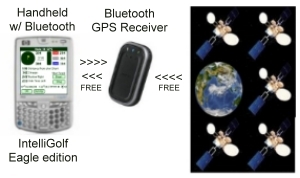
Getting Started
A. Purchase/download the IntelliGolf Eagle edition software for your platform by clicking here. You do not need a GPS receiver to start using IntelliGolf today. You can download courses, score your rounds of golf, track shots, view statistics, and keep sidegame wagers while you are waiting for your GPS receiver to arrive. As such, you can download/install IntelliGolf TODAY while your GPS receiver is on order.
B. Purchase a Bluetooth-based GPS receiver that is compatible with your handheld/smartphone or a handheld/smartphone that already includes an IntelliGolf-compatible GPS chip in it. You can view our list of compatible GPS receivers/smartphones by clicking here. Once you receive your GPS receiver or smartphone, please follow the Set-up/Discovery/Bonding instructions provided by the manufacturer. It's easy to do.
C. After your new GPS receiver or smartphone is working, start a New Round of golf from within IntelliGolf. A the bottom of the Main Scoring Screen (touch screen devices) or from the pull-down menu (non-touch screen devices), select the "satellite icon" or "GPS" (from Menu). Then select Set-up. Then, please follow the GPS set-up instructions listed in the IntelliGolf on-line Tours (Section 6) for your particular handheld/smartphone by clicking here. It's really pretty easy!
Once you're all set up, for GPS-enabled courses (i.e. that have a satellite icon next to them in the IntelliGolf course database), you will begin receiving distances within a few seconds (once you're on the golf course). Off the golf course, you will see "???" in the distance fields. That will let you know that everything is working fine, but the distances being reported are greater than 1000 yards/meters. You're all set!
For even more information on IntelliGolf and GPS, please read through our FAQs on GPS or give our GPS White Paper a quick read by clicking here.
P.S. To attached your GPS receiver to your golf cart or golf bag, we recommend using a piece of double-sided Velcro. That way you can take it on/off very easily for recharging in between rounds :-).
Have a Great Round!
Top
As you probably know, IntelliGolf supports the widest range of GPS receivers in the industry (http://www.intelligolf.com/intelliGpsCert.asp). This means that you have some excellent options in selecting the best GPS receiver for your handheld and/or situation.
I need a handheld and a GPS receiver If you do not already own a handheld, then you might want to consider getting a handheld with an "embedded/attached" GPS receiver. Some examples of this would be the HP 6915 (Pocket PC), AT&T Tile, HTC TyTn II, Motorola Q 9h, Navman PiN (Pocket PC), or the Garmin iQue (Palm OS) handheld ( see http://www.intelligolf.com/intelliGpsCert.asp ). While these GPS "systems" seem a little pricey at first, taken in total, they are very price competitive. Plus, they offer the best of all worlds. These GPS systems traditionally come with very good navigation software for driving in your car. They usually come with suction cup mounting system for attaching to your windshield or dash board (i.e. car or golf cart). And last, the flip-up GPS receiver is relatively small (1"x 1") making it very convenient to use.
I already own my handheld. I just want to add GPS receiver
If you already own a handheld, then you will want to select the best "add on" GPS receiver for your situation. First, you will need to determine if your handheld includes support for Bluetooth (i.e. wireless communication). If it does, then adding a Bluetooth GPS receiver to your system is a real possibility (more later). Second, determine if your handheld includes a Compact Flash slot or an SDIO slot. If it does, then adding a CF or SDIO-based GPS receiver to your handheld is a possibility. If your handheld does not include any of the above, then adding a GPS receiver to your handheld is not possible.
Walk or Ride?
Next, let's assume that your handheld includes embedded support for Bluetooth, has a Compact Flash slot, and a SDIO slot. Now what? It is time to ask yourself if you "walk" or "drive" a golf cart most of the time during your rounds of golf.
Drive - we suggest a Bluetooth GPS receiver
If you drive a cart most of the time, then we would suggest getting a Bluetooth GPS receiver. With a Bluetooth GPS receiver and a piece of double-sided Velco, you can temporarily mount your GPS receiver to the top of the golf cart (i.e. rented or owned). That way, the GPS receiver is always pointing up to the sky for the best reception. In addition, should you decide to walk out on fairway, you can always remove the GPS receiver from the cart and take it with you (i.e. Velco mounted). Also, since you haven't added anything physical to your handheld, your handheld will most likely fit into the cup holder of your golf cart. Or, you can purchase a handheld mounting system (i.e. suction cup mount) for your cart's windshield or dash board, from most handheld suppliers.
One other item to consider when selecting a Bluetooth GPS receiver is whether you want a rechargeable unit (e.g. DeLorme Bluelogger, Pharos iGPS, ALK CoPilot, etc) or a combo unit (e.g. DeLorme Earthmate). A combo unit is rechargeable but can also accept AAA batteries. All of the rechargeable GPS receivers that we tested had a battery life of greater than 5 hours (most 6-8 hours) per charging. That means you should easily be able to complete a full round of golf on a single charging. However, if you are going to play more than one round a day, or have a habit of forgetting to charge things, then getting a combo unit is a real plus. Note: Combo units are a little larger than rechargeable (only) receivers as they include a battery compartment.
Walk - we suggest a Compact Flash, SDIO, or Bluetooth GPS receiver (w/ belt clip)
If you walk most of the time, then you might want to consider getting a Compact Flash or SDIO-based GPS receiver. These GPS receivers insert directly into the top (or side) of your handheld. This makes for a convenient one piece design, particularly if the slot is on the "top" of your handheld as it will still fit into your pocket. However, the downside of using plug-in GPS receivers is that they get their power from the handheld. If your handheld's battery is not fully charged, you will want to use the GPS receiver sparingly. Also, please check with the manufacturer before purchasing a plug-in GPS receiver to "make sure" that it is compatible with your handheld. Note: We do not recommend sleeve-type GPS receivers. They seem to draw a significant amount of power from the handheld and/or require the purchase of addition software to function properly.
The other "walking" option is to get a Bluetooth GPS receiver that includes a belt clip. You will want to check with your GPS manufacturer on the availability of a belt clip for their GPS receiver. Some offer belt clips and others do not. With a belt clip mount, you can clip the Bluetooth GPS receiver to your belt, or golf bag, and still enjoy the wireless benefits of Bluetooth.
I hope this overview has helped you to select the best GPS receiver for your handheld and situation. Have a Great Round!
Top
Please see detailed IntelliGolf detailed GPS instructions by clicking here.
Top
Yes, please click here to review the IntelliGolf White Paper (article). It covers these topics in more detail.
Top
Yes, course uploads and downloads (including golf course essentials, course scorecards, etc) are a FREE service provided to our current "in-revision" (i.e. version 10.x and 11.x) customers for their personal use with IntelliGolf. Please click here to read more about our in-revision course database access policy. As you know, competitive products charge up to $59.95 per year in annual membership fees and/or up to $19.95 per course download. Plus, IntelliGolf course downloads are only 5-8Kb per course as compared to 400,000 bytes for other products. IntelliGolf saves you time, memory, and money. For more information on our Upgrade Policy, please click here. To upgrade to our latest version 10.x series of products, please click here. Note: Internet connection and/or wireless data access fees are the responsibility of the user.
Top
The IntelliGolf Eagle GPS option software includes support for GPS and Bluetooth. For GPS-surveyed courses you should be able to view distances to the front, back, and center of the Green, the 200, 150, and 100-yard/meter markers, and you can enter up to three custom fairway locations (e.g. sand trap, dog-leg, creek, etc) per hole. Note: The IntelliGolf Par, Birdie, and Desktop editions do not include support for GPS and Bluetooth.
Please see IntelliGolf software overview web page for more information by clicking here.
Top
Please click here for a list of compatible GPS receivers, smartphones, and handhelds.
Top
For years we have been researching the possibility of adding course maps to IntelliGolf. In discussions with IntelliGolf users, and users of competing products, they have told us that:
1. Course maps are “cool” to use the first couple of times,
2. Course maps are "cool" to show to friends in the clubhouse,
3. Course maps are hard to read on the course (i.e. in the sunlight) unlike the clarity seen in advertisements,
4. Course maps are large to download (e.g. up to 400,000 bytes) and consume significant air-time (i.e. download costs),
5. Displaying course maps on a handheld/smartphone eats (i.e. significantly reduces) battery life (i.e. a real problem),
6. Course maps can cost up to $19.95 "each" or come with "annual" membership fees (i.e. up to $59.95 per year), and
7. Courses maps traditionally require you to tap/touch on the location of your ball and/or target destination. As such, the displaying of incorrect distances is relatively common using course maps.
IntelliGolf, Inc., has implemented a more practical and cost effective approach to GPS-based distance determination. Rather than charge for course downloads, consume large amounts of handheld/smartphone memory, and require significant (wireless) download times and costs, we provide IntelliGolfers with "compact" digital course scorecards that include GPS distances embedded into the scorecard for GPS-surveyed courses. Distances include to the front, center, and back of the Green, to the 200, 150, and 100 yard/meter markers, and for up to three (3) custom fairway locations per hole (e.g. fairway bunker, sand trap, lake, etc) of your choosing. That means that the IntelliGolf software is as accurate as your GPS-enabled smartphone or GPS receiver (i.e. usually within 1-3 yards/meters). That's equal to (or better than) the accuracy provided by dedicated GPS range finders costing up to $400. Plus, the IntelliGolf software doesn't depend upon you taping/touching on the location of your ball. IntelliGolf determines this for you. And, IntelliGolf courses are only 5K-8K bytes (i.e. small) in size vs 400,000 bytes for course maps (i.e. large). That saves you time, money, and memory. And, did we mention that course downloads are FREE for our in-revision (e.g. version 9.x) customers? What a savings!
For courses that have not been GPS-surveyed by us or a fellow IntelliGolfer, we provide our Eagle Pro edition customers with the ability to GPS-survey and upload your favorite course(s) into the IntelliGolf course database for everyone to share. This can all be done from the comfort of your own home using Google Earth. There are no maps to create or drawings to make. What a relief… Simply use our FREE Course Survey Editor software (see the Course's web page) and your mouse to click on the front, center, and back of the Green, the 200, 150, and 100 yard/meter markers, and up to three (3) custom fairway locations per hole (e.g. fairway bunker, sand trap, lake, etc) of your choosing. That means "you" have the ability to customize each hole based upon your own personal preferences. Now, you will know how far it "really" is to the center of that dog-leg, or to the clear the creek, or to that annoying sand trap on the right. No more guessing… IntelliGolf provides you with accurate "distances" to your favorite waypoints.
BTW - Did we mention that there are no "annual" or "per course" download fees with IntelliGolf for our in-revision customers? You can customize each course (or hole) based upon your own personal preferences. The IntelliGolf Eagle Value/OTA edition and the Eagle Pro edition software, combined with your GPS-enabled smartphone or GPS receiver, is an accurate as dedicated GPS-based range finders costing up to $400. And, course downloads are compact. IntelliGolf saves you time, saves you money, and saves you memory.
So, what do you really want? Pretty pictures that are hard to read in the sunlight, recurring annual fees, and high download costs, or GPS-based "distances" to key destination points so that you can quickly plan out your next shot? We hope this information helps. Have a Great Round!
Top
As you know, virtually all golf courses move the pin location every day for every hole all 365 days a year. As such, storing/tracking all possible pin placement combinations for 18 holes, for just one course, for just one year, would be immense. The math on that would be 18 (holes), to the 18th power (possible pin/hole combinations per day), to the 365th power (for each day of the year). And, that is only for one course, for one year… Not only is that a huge number, but storing that type of information on your handheld or smartphone would be impossible. Imagine what that would do to your battery life. Gone… IntelliGolf provides users with a more practical approach to Green management by storing the coordinates for the front, center, and back of the Green. IntelliGolf saves you time, money, and memory. Have a Great Round!
Top
Generally, when the DeLorme Earthmate GPS receiver is not connecting with IntelliGolf, but is connecting with the DeLorme Street Atlas software, it is because the Street Atlas settings need to be changed to “NMEA” compliant. The Street Atlas software can use either DeLorme’s proprietary communications protocol or the NMEA industry standard protocol. In the Street Atlas software, go to Settings, GPS, and select NMEA 0183. Now all NMEA compliant applications should be able to communicate with your Earthmate GPS receiver, including IntelliGolf. Tip: If your GPS receiver is connected to your handheld via a serial connection, set the Baud Rate to 4,800. Tip: If you want to wirelessly connect your Earthmate GPS receiver to your handheld via Bluetooth, please make sure that your handheld supports Bluetooth, that you have a Bluetooth-enabled GPS receiver, and that Bluetooth communications are turned on in your handheld (see your handheld manual for details).
Top
Please visit the appropriate IntelliGolf Tour (i.e. on-line manual) for more information on setting up your GPS receiver with IntelliGolf. They can be found by clicking here. Section 6 covers this topic (i.e. IntelliGPS). Also, there is more information on (generally) how to connect/bond your Bluetooth-based GPS with your smartphones in this this PDF file.
Top
First, make sure to power up the GPS receiver at least a couple minutes before you start your Round of golf. That is the normal time it takes for a GPS receiver to initiate and connect to the GPS satellites circling the Earth. Then, before you get to the 1st Tee Box, tap on the Satellite Icon in IntelliGolf to connect to the GPS receiver. After about 10 seconds (the initial Bluetooth start-up time for GPS receivers) it will give you GPS distances to your various target locations. Rather than exiting the GPS screen after your tee shot, leave it in the GPS screen until you reach your ball (i.e. tee shot). That way, the GPS receiver will be constantly updating its GPS locations as you drive/walk down the fairway. When you get to your ball, it will only take a couple seconds for it to give you accurate GPS distances to your next target destinations (as it is not going thru the 10 second re-start sequence again). Repeat the same for as many shots as it takes your to get to the green (some times more, some times less :-). When you are on the green, and have finished the hole, then go back into the main scoring screen and enter your foursome's scores, wagers, etc. On your way to the next Tee Box, tap on the Satellite icon again (to re-connect via Bluetooth) and you'll be ready to tee off with GPS distances in hand.
Top
There are basically two (2) GPS modes in the IntelliGolf Eagle, Eagle OTA, and Eagle GPS option software: GPS Simulator Mode and GPS Live Mode. GPS Simulator Mode is for customers that have not (yet) invested in an IntelliGolf Certified GPS Receiver. In this mode, the IntelliGPS screens will provide you with "approximate" distances from the "tee box" to the center of the green and to various key target locations in the fairway. These include to the 200, 150, 100 yard/meter markers. As such, customers that do not own a compatible GPS receiver will still be able to view approximate distances from "tee to green" and "tee to fairway markers". This assists in club selection from the tee box.
For example, it is not always wise to hit your Driver on every Par 4 hole (e.g. 377 yard hole). IntelliGolf's Simulator Mode will visually present you with approximate distances to the 200, 150, and 100 yard markers (and to the green) from the tee box. Depending upon the traps, lakes, and trees that are present, it may be wiser to hit your 3W from the tee box to the 150 yard marker (227 yards away) as compared to hitting your Driver to the 100 yard marker (277 yards away). The IntelliGPS simulator screens will provide you with an easy, visual way to view these approximate distances without having to do the math (i.e. IntelliGolf takes the math out of golf).
For customers that own an IntelliGolf Certified GPS Receiver, in GPS Live Mode the IntelliGolf Eagle edition will recognize, communicate, and convert your "actual" longitude and latitude location into distances to/from any Surveyed point on the hole. While on the tee box, IntelliGolf will use the IntelliGPS algorithms to present GPS distances to a) the 200, 150, 100 yards markers, b) the front, center, and back of the green, and 3) three custom fairway locations per hole (e.g. sand trap, stream, lake, etc). As you travel down the course, while in the IntelliGPS screen, IntelliGolf will communicate with your GPS receiver (about every 2 seconds) to determine your current location. When you stop, IntelliGolf will use your present longitude and latitude location to determine GPS distances to the target destinations listed above. As such, in GPS Live Mode, the IntelliGolf Eagle edition software will provide golfers with GPS distances 1) on the tee box, 2) on the fairway, and 3) on up to 3 custom fairways points from any location on the tee box or fairway.
In summary, the IntelliGolf Eagle edition includes two GPS-related modes: Simulator Mode and Live Mode. In Simulator Mode, golfers can view approximate distances from "tee to green" and "tee to fairway markers" even if they do not own a GPS Receiver. That helps with club selection from the "tee box" and takes the math out of doing these calculations manually. In GPS Live Mode, IntelliGolf will provide golfers with GPS distances from 1) tee to green 2) tee to fairway markers, and 3) tee to custom points, from anywhere on the hole. Have a Great Round!
Top
After tapping on the "satellite icon" at the bottom of IntelliGolf's Main Scoring Screen (MSS), tap on Setup in the GPS screen. From the pull down menus set Device = NMEA Compatible, Port = Serial cable on SP2, Baud = 4800. Then tap on OK. Then, go outside and give your PiN initially 1-2 minutes to connect to the satellites circling the earth. After that, it will connect within seconds during your Round of golf. BTW - Make sure to "exit" all other applications (i.e. navigation software) on the PiN when using IntelliGolf. Only one application can access the PiN's GPS receiver at a time. Have fun!
Top
To set-up the IntelliGolf Eagle edition or Eagle GPS Option software for Pocket PCs (Windows Mobile Professional/Classic) to work with your AT&T Tilt or HTC Ty Tn II, start a New Round of golf (or resume an existing one), tap on the GPS icon at the bottom of the Main Scoring Screen, tap on Setup, change Device to "Direct connection" using the pull-down menu, change Port to "COM4: Active Device", and change Baud: to "NMEA Default". Click OK. That will return you to the GPS screen. Initially, you will see a message "GPS data not being received for the current device setup.". That is OK :-). It takes about 2-3 minutes for the internal GPS receiver to warm-up and start receiving signals from the GPS satellites circling the Earth. BTW - You need to be outside (in clear view of the sky) for the internal GPS chip to start receiving GPS satellite signals. Have a Great Round!
P.S. If your GPS receiver doesn't start receiving GPS signals after 2-3 minutes, exit IntelliGolf's GPS screen and then re-enter it again. Sometimes the GPS chip needs to be initially re-queried by exiting and re-entering IntelliGolf's GPS screen.
Top
Please see the footnote at the bottom of the "GPS Certified" table regarding the Garmin Mobile 10 (vs GPS 10). Please click here to be transferred to the GPS Certified table now.
Top
As you might guess, your GPS receiver is receiving signals from the GPS satellites that are circling the Earth. These signals, in the form of latitude and longitude data, are then passed to IntelliGolf from your GPS receiver. The IntelliGolf Eagle, Eagle OTA, and Eagle GPS option handheld/smartphone software takes these latitude and longitude data and converts them into distances. As such, IntelliGolf will only be as accurate as the GPS receiver that you have purchased. In addition, you will find that GPS accuracy increases with the number of GPS satellites. For example, if you look at the lower right corner of IntelliGolf GPS distances screen, you will see a number listed. That is the number of satellites that your GPS receiver is communicating with at any given moment. Generally, if there are only 3-4 satellites showing, then the accuracy of the GPS data that is being received will be marginal (i.e. fluctuate quite a bit). You may see fluctuations of 4-9 yards while standing in the same position. However, if you are showing 10-12 satellites, you will find that the GPS data being received is excellent (i.e. hardly any fluctuations) and usually within 1-3 yards of your exact position, or even less.
The number of satellites shown is a function of the quality of the GPS receiver that you own and a function of your position on the Earth. Newer GPS receivers (e.g. DeLorme BT-20) with the latest GPS chip sets tend to get better reception than older GPS receivers (ALK CoPilot). As such, getting a newer, WAAS-enabled GPS receiver that supports at least 12 channels is a real plus for golf. Generally, more channels means more satellites = better accuracy. IntelliGolf will only be as accurate as your GPS receiver.
Note: If your GPS receiver is showing a high number of satellites (8-12), but your distances are fluctuating a lot, you should probably contact the manufacturer of your GPS receiver. We've only heard about this situation a few times, but in those particular cases the GPS receiver was defective (or broken). If you're not seeing this same relationship, then you either have an older GPS receiver or something is not working properly with your GPS receiver. IntelliGolf will only be as accurate as your GPS receiver/chip. We hope this information helps. Have a Great Round!
Top
When this is happening, mainly seen on the Treo 650, it is usually because you have multiple Bluetooth-based devices paired with your handheld and it is getting confused or you are not running IntelliGolf version 9.x (or higher). Unfortunately, the Treo 650 does not provide a way to delete non-trusted devices (i.e. no gold key next to the device listing) from the Bluetooth set-up screen, only trusted devices (i.e. with a gold key). As such, non-trusted device listing can accumulated over time and cause your Treo to become confused when trying to connect to your Bluetooth-based GPS receiver. To delete trusted and non-trusted devices from the Treo, there is a free little software routine that you can download and install onto your Treo 650. It will let you quickly delete trusted and non-trusted devices. To download this routine, please visit http://3division.net/hub/btcached/ and click on the Download button. Save the Btcached.zip file to your Windows-based PC. Then unzip it into a known folder. Once unzipped, you will find two files named btcached.prc and Btaddressdatabase.pdb. Next, double-click on the btcached.prc file and it will be added into your (Palm) synchronization folder. Press the HotSync button on your Palm and the Btcached.prc file will be installed onto your Palm. From your Palm's main application screen, look for the BTcachED icon and select it. Now, you should see all of the devices that are paired with your handheld. Use the "Delete device from cache" to delete the paired devices that you don't need or want. Please make sure that your Bluetooth-based GPS receiver is listed with a golf key next to it (i.e. a trust device).
If your GPS receiver is not listed with a gold key next to it, you will need to pair it to your Treo. First, turn on your Bluetooth-based GPS receiver and let it warm up (facing the sky) for about 1 minute. Next, from your Palm's main application window, tap on the Bluetooth icon. Tap on "On". Tap on "Setup Devices", then "Trusted Devices", then "Add Device". Your Palm will start searching for Bluetooth-based devices in your area. You should see your GPS receiver appear. Tap on that device and then tap on OK. It will then ask you for the passcode. That is usually "0000" (four zeroes), but your GPS device manual will tell you for sure. Your GPS receiver will then be paired with your Palm.
Next, go back to your Palm's main application windows and restart IntelliGolf. Resume an existing Round of golf, or start a New Round. From Hole #1, tap on the satellite icon at the bottom of the Main Scoring Screen. After seeing "Connecting" for a few seconds, you will reach the Main GPS screen. Tap on "Setup", then select NMEA Compliant, Bluetooth, and NMEA Default, then tap on OK. Now you should see a list of your pair Bluetooth devices. Tap on the entry for your GPS receiver and then OK. That should designate your GPS receiver to IntelliGolf and return you to the Main GPS Screen. Within a few seconds you should start seeing GPS distances (or "???" in the distances fields if you are off the course) for GPS-enabled courses. There is more on GPS-enabling your favorite course(s) in the GPS section of our FAQs. To exit the GPS screen, tap on OK and you will returned to the Main Scoring Screen.
BTW - If you continue to loose the connection between your Palm handheld and GPS receiver, you might want to check our IntelliGPS Certification Table to ensure that your GPS receiver has been "certified" compatible with IntelliGolf. You can view our IntelliGPS tables by clicking here.
Top
Generally, this symptom appears when you have connected your Bluetooth-based GPS receiver to either another navigation-based handheld (e.g. E65), or have installed new navigation software onto your current device (e.g. Treo 650). Unfortunately, some of the new navigation devices/software update the "device driver" on the GPS receiver to maintain "exclusive" access to it. The reason is that the navigation device/software wants the Bluetooth GPS receiver to be connected at all times "only" to it (i.e. for driving directions). So, the new device driver tells the GPS receiver to "disconnect" from all other devices and reconnect "only" to the navigation device (i.e. handheld) after 10 - 20 seconds. As such, you will see GPS distances in IntelliGolf for about 10-20 seconds and then they disappear (i.e. the connection is lost). This sympton will occur over and over again until a factory reset is perform on the GPS receiver to reinstall the original device driver (more below).
The good news is that a "factory reset" of the Bluetooth GPS receiver will usually restore the original device driver and solve this problem. In the case of the BT 338, this is done by removing the battery for about 10 minutes (i.e. clearing it) and then reinserting the battery. Please check your GPS receiver's manual for specific information on how to reset your GPS receiver to its original state. Once your GPS receiver is reset to its original state, it should work fine again :-).
Top
Recently, an IntelliGolf customer sent us instructions on how they got Garmin's Mobile 10 GPS receiver to work with IntelliGolf. Since Garmin has not sent us a Mobile 10 GPS receiver yet, we have not been able to verify these set-up instructions, but we hope that they will help you.
"I have managed to get the Garmin Mobile 10 GPS to work with IntelliGolf and a PDA with Windows Mobile 6 (T-Mobile Wing in my case). I figured some of your customers might like to try my configuration:"
1) Turn on the Garmin Mobile 10 GPS (blue light flashes)
2) Turn on Bluetooth on the PDA (via Communication Manager)
3) From the Comm Manager, go to "Settings", then "Bluetooth", then do the following:
a) From the "Devices" tab, select "Add New Device,.."
b) It will search for devices, select the "Garmin GPS…." when it appears, then click "Next"
c) Enter in the Passcode, the default pairing code for the Mobile 10 is "1234", then click "Next"
c) Check the "Serial Port" check box, then click "Finish"
d) Go to the "Com Ports" tab, select "New Outgoing Port..", then "Next"
e) Select an available port, like "COM6" on my device
f) Leave the "Secure Connection" checked, then click "Finish"
4) Put your GPS outdoors in the open where it can get a signal
5) Start Intelligolf on the PDA
6) In the GPS Device Setup, select "Direct Connection", "COM6" (or what ever port you created in step 3e), and "NMEA Default".
7) You should be good to go.
Thanks Richard!
Top
The numbers (e.g. 11) at the bottom of the GPS distances screen, next to the satellite icon, shows the number of satellites that IntelliGolf is receiving signals from via your handheld/smartphone or GPS receiver. The higher the better :-).
The "!" appears when IntelliGolf senses that the accuracy provided by the GPS "chip" in your handheld/smartphone/receiver is outside (greater than) 10 yards/meters. This is a caution signal to let you know that the accuracy of the GPS distances being provided to IntelliGolf by the GPS chip in your device may be outside of one (1) club length (i.e. > 10 yards/meters). However, some of the new handhelds/smartphone include AGPS (Assisted GPS) capabilities. This feature helps to increase the device's "actual accuracy" by utilizing your local cell tower network. There is more on this in Wikipedia by clicking here.
To date, most handheld/smartphone/receivers only provide software applications with GPS "chip accuracy" information (i.e. not AGPS information). As such, the actual accuracy of your device may be far better than 10 yards/meters (i.e. in the 1-3 yard/meter range :-) being reported to IntelliGolf depending upon whether your devices includes AGPS capabilities. In previous versions (e.g. 8.x), IntelliGolf would only provide GPS distances when IntelliGolf sensed that GPS "chip accuracy" readings were inside of 10 yards/meters. If GPS chip accuracy was outside of 10 yards/meters, IntelliGolf would show the message "Accurate GPS distances are not being received" (i.e no distances). In IntelliGolf version 9.0 and higher, IntelliGolf shows all GPS distances (for GPS surveyed courses) and puts the "!" icon at the bottom of the screen when GPS "chip's accuracy" is outside of 10 yards/meters. That way, you will get to see all GPS distances as "actual accuracy" may be far better than GPS chip accuracy for AGPS-enabled devices :-). Once the handheld/smartphone/receiver manufacturers start providing "actual accuracy" sensing/reporting, we will link the "!" icon to the device's "actual accuracy" vs "chip accuracy" readings. For now, IntelliGolf will provide you with the best GPS readings possible (actual accuracy) and an indicator ("!") when GPS chip accuracy is outside of 10 yards/meters.
P.S. If you see numbers ("nn") next to the satellite icon and do not see any GPS distances in the GPS distances fields, that is probably because your course has not been GPS surveyed by a fellow IntelliGolf. GPS surveyed courses have a satellite icon next to them in the IntelliGolf course database. We have more information on how to GPS survey your favorite golf courses in this section (GPS) of our FAQs.
Top
Some years ago, Verizon limited (i.e. prevented) access to the GPS chip in "some" (i.e. not all) of their smartphones for any non-Verizon (i.e. paid for) 3rd-party applications. To the best of our knowledge… that practice has fortunately ended. That is GREAT news! As such, if your Verizon-based smartphone does not show GPS distances using the IntelliGolf Eagle edition software for GPS-enabled courses (i.e. with a "satellite icon" next to them), you may need to contact Verizon to get a firmware (i.e. Device Software) "update" for your smartphone. You can reach their Support folks by clicking here.
RECOMMENDATION: Based upon Verizon's past practices, we always recommend downloading and installing our FREE Trial edition software before buying IntelliGolf. You can do this by clicking on the "Free Trial Copy" link in the left column of any of the IntelliGolf Eagle edition's product description. Please click here to be redirected to our Products web page. From there, select the Eagle edition product for your platform (left column) and you will be taken the that product's web page. You will see the Free Trial Copy link in the left column. For installation and user instructions, please click here for our Product Tours and then click on the Quick Start Tour for your platform. It will save you a lot of time.
Based upon Verizon's practices, and if GPS chip access has been restricted in your smartphone, you have three options.
1) Get an external Bluetooth-based GPS receiver/puck, or
2) Get the IntelliGolf Birdie edition (no GPS support), or
3) Change carriers.
If you want to stay with Verizon, then adding an external Bluetooth-based GPS receiver/puck to your phone is your best bet. They cost about $75-$125 and are traditionally very accurate (i.e. within 1-3 meters). To see a list of IntelliGolf-compatible external GPS receivers/pucks please click here and see Sections III & IV. We also have more information on how to set-up an external GPS receiver/puck to work with the IntelliGolf software by clicking here.
P.S. For more information on Verizon's previous GPS-limiting practices, you can search he web for "Verizon GPS disable issue" and you will find a lot of articles on this topic. In fact, a class action lawsuit was filed against Verizon for their practices. You can read more about this by clicking here.
Top
AT&T has limited (i.e. prevented) access to the GPS chip in "some" (i.e. not all) of their smartphones. These include the AT&T E71X and N6650 smartphones. This was recently brought to our attention by customers that purchased AT&T-branded versions of Nokia's E71X and N6650 smartphones. Note: The non-AT&T versions of these phones work great with IntelliGolf (e.g. E71 - notice no "X"). That reinforces the fact that AT&T has restricted customer access to the GPS chips in these phones for all but their sponsored applications. As such, we always recommend that your download and install the Free Trial edition of the IntelliGolf software. Our free trial edition software can be found via the Free Trial tab as the top of www.intelligolf.com
For the past couple years, Verizon has been doing the same to its customers. This sparked a class-action lawsuit against Verizon. You can read more about this by clicking here. Fortunately, Verizon appears to have abandoned their GPS-limiting practices this year. This is very good news for both Verizon customers and us as it sounds like Verizon has opened-up access to their location-based (GPS) APIs. Hopefully, AT&T will follow their lead but there are no guarantees at this point.
RECOMMENDATION: Based upon AT&T's restriction practices, we recommend that your "return" your AT&T branded Nokia phone to AT&T for a full refund and purchase a Nokia-branded E71 (i.e not the "X" model from AT&T) smartphone or another IntelliGolf-supported smartphone of your choice (see www.intelligolf.com). The other choice is to change "carriers" (i.e. away from AT&T) until they change their restriction policies. After all, you are paying for the features in your smartphone. Why support a carrier that restricts access to freatures that you have paid for? BTW - If you continue to use AT&T's E71X or N6650 smartphones you will/may find these same issues with other non-AT&T applications. We hope this information on AT&T's practices will help you to find a better smartphone solution for running all of your desired applications.
Have a Great Round!
Top
If you currently own, and have installed, a previous live version of the IntelliGolf Par, Birdie or Eagle edition "version 8.x-9.x" software, you can change platforms by simply purchasing the Birdie or Eagle edition "version 10.x Upgrade" for your new platform. For example, if you currently own the IntelliGolf Par, Birdie or Eagle edition for the Palm OS (i.e. existing platform) and would like to change platforms to the IntelliGolf Birdie or Eagle edition for Pocket PCs (i.e. new platform), you can purchase and install the IntelliGolf Birdie or Eagle edition "version 10.x Upgrade" for your new platform to change platforms. To switch platforms please visit the Intelli-eStore and select the appropriate IntelliGolf "Upgrade" product. The Upgrade will save you about 40% as compared to purchasing the full IntelliGolf product. Plus, if your current "golf.gdb" players, rounds, and courses database (DB) still exists on your PC (Birdie and Eagle versions only), the Upgrade will automatically sense the your current DB and also convert it to your new platform's DB format :-).
IMPORTANT - The upgrade must be installed using the same PC that is currently running your existing version of IntelliGolf. The upgrade must find an existing live version of IntelliGolf on your PC to upgrade and/or for a platform change to work.
DB BACK-UP: It is always a good idea to make a back-up copy of your existing "golf.gdb" database. You should find it in the C:\Program Files\IntelliGolf directory. Simply copy this file to another directory on your PC or to a diskette or CD-R. Then, you will have a back-up copy of our IntelliGolf courses, rounds, and players database :-).
Note: If you have not kept current with the version 8.x upgrades, and are running IntelliGolf version 7.x (or earlier), you will need to purchase a full new version of IntelliGolf for your new platform via the Intelli-eStore. The latest IntelliGolf version 10.x upgrades will not upgrade the much older version 7.x (or earlier) software to version 10.x based upon all of the updates that the handheld/smartphone manufacturers have made to their operating systems in the past few years.
Top
If you are currently running the IntelliGolf Par OTA (Over-the-Air) or Eagle OTA version 8.x-9.x software products for your existing platform (e.g. Sony Ericsson, Nokia, etc) and wish to change platforms (e.g. Palm, Pocket PC, WM Smartphones) and/or upgrade to Birdie or Eagle edition software for your new/existing platform, then you will need to purchase the full live version of the Birdie or Eagle edition software. Please click here to save some money using the Replacement Program offered by one of our resellers :-).
Top
If you are running the much older version 7.x (or earlier) IntelliGolf Par, Birdie, or Eagle edition software and have not kept current with our latest version 8.x-9.x upgrades, please see Section III on our Upgrades web page by clicking here.
Top
Please click here and see the answer to your question in the General section of our FAQs.
Top
There are now two (2) versions of the IntelliGolf software for Blackberry-based smartphones. One version is for Blackberry OS 10-based smartphones (e.g. Z10, Z30, Q10*, etc) and the other version is for Blackberry OS 5-7 based smartphones (e.g. Storm, Tour, etc). The two IntelliGolf software versions are completely different as RIM's latest OS 10 is completely different from RIM's OS 5-7. You can find out more about our latest IntelliGolf for the Blackberry OS 10 software by clicking here. You can find out more about our IntelliGolf for the Blackberry OS 5-7 software by clicking here. While not an all inclusive list, the IntelliGolf software for Blackberry OS 5-7-based smartphones should run great on the following Blackberry models: 8220, 8230, 8300, 8310, 8320, 8330, 8350i, 8520, 8530, 8700c, 8700e, 8800, 8820, 8830, 8900, 8910, 9000, 9100, 9105, 9300, 9330, 9350, 9380, 9500, 9520, 9530, 9550, 9570, 9630, 9650, 9670, 9700, 9780, 9780, 9800, 9810, 9850, 8860, 9900, 9930, and other BB smartphones running OS 7.x, 6.x, and 5.x. The IntelliGolf software for Blackberry OS 10-based smartphones runs great on the Z10 and Z30 but has mixed results on the Q10*.
For installation and user instructions, please click here.
* Note: The IntelliGolf Eagle Smartphone edition software for the Blackberry OS 10 runs fine on some Q10s and not so well on other Q10s. It appears that the Blackberry Android-to-Blackberry OS 10 compiler does not work as well for/on Q10s as it does for Z10s and Z30s. You're welcome to try it on your Q10 and if the software does not work well for you, you can return it according to Blackberry World's product return/refund policy. Have a Great Round!
Top
Please click here to access RIM's web page for downloading their latest Device and Desktop Manager software. In addition, there is a link to access "service provider" (i.e. carrier-specific) versions of RIM's Device and Desktop Manager software.
Note: If your IT Manager usually configures your Blackberry for you, you should consult with your IT Manager before installing RIM's latest software. Have a Great Round!
Top
If your Blackberry is not set-up (yet) to allow data access to/from the Internet, RIM provides information on how to set-up your TCP (wireless data) connection. Please click here to visit RIM's TCP set-up web page. Or, you can visit it directly by going to http://www.blackberryforums.com/blackberry-network/2185-blackberry-internet-msn-chat-web-telnet-tcpip-no-bes.html. This (RIM) web page will show you how to set-up your APN, Username, and Password for making a Direct TCP connection.
In addition, IntelliGolf supports four (4) network connectivity options: Direct TCP, Device Default, Enterprise gateway (BES/MDS), and Public gateway (BIS-B) . For more information on setting up IntelliGolf for your particular network, please click here
Note: On some of the newer Blackberry's you will find the TCP section by selecting Settings (from the main Blackberry screen), then Options, then Advanced Options, then TCP. In the TCP section, you will simply enter your carrier's information (as listed in the URL above) and then "reset" your Blackberry as described via the URL (i.e. turn it off, remove the battery, and then re-install the battery, etc). Have a Great Round!
The IntelliGolf software for the Blackberry provides that ability to wirelessly download courses from the IntelliGolf golf course database directly to your Blackberry using your (carrier's) data access plan. If wireless data capabilities are already set-up on your Blackberry, please go to the Rounds screen in IntelliGolf, press the trackball/wheel, select Courses, press the trackball/wheel, select Download, enter the Course name (e.g. Pebble Beach), press the trackball/wheel, select Search, and IntelliGolf will display the course(s). Use the trackball/wheel to highlight the desired course, press the trackball/wheel again, and select Download. Within less than 1 minute the course will be downloaded to your Blackberry. That will save you up to 300 keystokes as compared to manually entering all of the hole yardages, par ratings, hole handicaps, etc. It's easy with IntelliGolf.
Note 1: If you network connection is not set-up yet, please please click here to view RIM's instructions on setting up a Direct TCP connection.
Note 2. If you receive an error message when trying to download courses, please click here to view more information on setting up IntelliGolf to wirelessly download courses in your particular environment (e.g. standalone, BES, etc).
Top
Yes, the Blackberry 8300-series (Curve), 8800-series, and 8310's integrated GPS chip is compatible with IntelliGolf. We would highly recommended that you purchase/download the IntelliGolf Eagle, Eagle Option, or Eagle Upgrade "version 9.01" (or higher) software to use with the smartphones. Version 9.01 (or higher) adds enhanced support for the GPS chips in these smartphones thus providing the best GPS accuracy possible based upon the GPS chips embedded into these smartphones.
For information on how to test the accuracy of the embedded GPS chip in your Blackberry please click here.
For information on how to set-up IntelliGolf to work with the embedded GPS chip in your Blackberry please click here.
Verizon Blackberry 8830 customers please click here as it unfortunately appears that Verizon has limited access to the GPS chip in your Blackberry.
Top
Blackberry Forums provides some useful information on GPS troubleshooting by clicking here.
Top
IntelliGolf includes the ability to connect to an external GPS receiver using Bluetooth. Based upon continued improvements in GPS technology, you will probably find that the newer external (third-party) GPS receivers offer increased accuracy and speed over integrated GPS receivers. This is particularly important for golf. For example, when using the DeLorme BT-20 Bluetooth GPS receiver or a Nokia LD-3W Bluetooth GPS receiver, 10-12 satellites were traditionally found within seconds. This generally produces accuracy readings of 1-3 meters (sometimes even less).
We have another very good (general) FAQ on what is required to GPS-enable your by clicking here.
Connecting an external Bluetooth GPS receiver to your BB is relatively easy. First, go outside and turn on your Bluetooth GPS receiver. Give it about a minute (initially) to start acquiring satellite signals. While it is doing that, go to the BB's main screen and select Settings. Then select Options, then Bluetooth, and then Enable Bluetooth by using the BB's trackball/wheel. Press the trackball/wheel again and select Add Device. You BB will start searching for Bluetooth devices in your area. Select your Bluetooth GPS receiver and enter its passcode (usually 4 zeroes: 0000). The devices will be paired. Then, exit back out to the BB main screen.
From the BB's main screen, start IntelliGolf. Next set-up and start a new round of golf. Once you are at the 1st Hole, press the trackball/wheel and select GPS. Press the trackball/wheel again select Setup and you will see a Device pull-down menu. Press the trackball/wheel again and you will be presented with the available devices. Select your Bluetooth GPS receiver. Then, select Done to proceed back to the GPS distances screen. You should begin to receive GPS signals from your new Bluetooth GPS receiver within seconds for a GPS-enabled course. There is more information on GPS-enabling your favorite courses in the GPS Section of our FAQs.
Note: After the GPS settings have been changed on your BB, if you receive the IntelliGolf message "GPS data not being received" for an extended period of time, it may be necessary to power down your BB, remove the battery from your BB, and then re-insert it after about 10 seconds. Also, please turn off your GPS receiver and then turn it back on after your BB has restarted. That will reset the Bluetooth connection. For some reason, some BBs need to have the battery removed and re-inserted for the new GPS settings to be accepted by the BB. Have a Great Round!
Top
To enter names into the Object 1, 2, or 3 custom fairway fields using a Suretype keypad (vs qwerty keyboard) when GPS surveying a course, press the trackball/wheel (TBW), select Survey, press TBW, select Object 1, with Label ______ highlighted in yellow, press TBW, Select/change, and then type in the Object name as usual. After entering the Object name, press TBW, then OK, and then Record the data point.
Top
IntelliGolf supports four (4) networking connection types. Depending upon your situation (i.e. Consumer or Enterprise user), you may wish to change IntelliGolf's initial setting from "Direct TCP" to one of the other options. That said, Direct TCP usually works well in most situations including both consumer and enterprise environments. As such, if Direct TCP is not working for you, please ensure that your Blackberry's service plan includes the ability to connect and download "data" from the Internet before changing networking options (i.e. consult with your IT folks and/or your wireless service provider).
Should you need to change networking options, your choices include Direct TCP, Device default, Enterprise gateway (MDS), and Public gateway (BIS-B). If you are working in a Blackberry Enterprise Server (BES), you may want to select either Enterprise gateway (MDS) or Public gateway (BIS-B) depending upon the advice of your IT personnel. If you are working in a consumer environment, you may want to select Device TCP or Public gateway (BIS-B). If none of those work, then try Device default. Device TCP uses your carrier's networking option (i.e. usually WAP). BIS-B uses the RIM's Blackberry Information Server (BIS) to exchange data. BES/MDS uses the BlackBerry Enterprise Server at your location to exchange data. Device default uses other options that may have been pre-configured on your BB
To change IntelliGolf's networking options, go to the IntelliGolf Rounds screen, press the Trackball/wheel (TBW), select Courses, TBW, TBW, select Download, TBW, TBW, select Network Access, select the network access type (TBW), press the BB's Menu key, select Done, and then use IntelliGolf to Search for, and Download, a course scorecard.
Note: In some cases, for the networking change to be accepted by your Blackberry, you will need to exit IntelliGolf, turn off your BB, remove the battery for 10 seconds, replace the battery, and then re-start IntelliGolf. After trying the various networking options, and consulting with your IT manager and/or service provider, if you are still unable to download courses, please contact us via the Support tab at the top of www.intelligolf.com with details of your particular situation. Have a Great Round!
Top
The Blackberry currently has a Java-based (RecordStore) database limit of 64Kb per record type. Based upon this RecordStore limit, that means you can store approximately:
* 10-15 Rounds (depending upon the number of sidegames being played);
* 20-40 Courses (depending upon how many have GPS coordinates included), and
* 100s of Players on your Blackberry.
For those users that want to keep more players, courses, and rounds, the IntelliGolf Birdie and Eagle edition software includes the ability to synchronize all of these items to the include Windows-based IntelliGolf desktop software. The IntelliGolf desktop software does not have any (practical) limits on storing rounds, courses, and players (i.e. GBs on your PC :-). The RecordStore limit is only on the Blackberry and is a function of RIM's Java implementation (i.e. probably to protect memory overruns).
BTW - The IntelliGolf handset software will let you know when you are approaching the Blackberry's RecordStore limits. If you experience this issue, simply synchronize your rounds, courses, and players to the Birdie/Eagle edition's included desktop software and delete some/all of these rounds, courses, and players from your Blackberry. Have a Great Round!
Top
If you are doing a first time install of IntelliGolf, this will typically be very quick (10-15 seconds). For upgrades, if the Blackberry's operating system (OS) determines that the previous (older) IntelliGolf software modules can be deleted immediately (i.e. without doing a soft reset), the new IntelliGolf application should install fairly quickly too (10-15 seconds). However, if the Blackberry's OS determines that some/all of the previous IntelliGolf modules can not be deleted immediately, then the upgrade will take longer (up to 2 minutes). Once the installation is complete, the Blackberry will do an automatic (soft) reset to complete the installation. This is the equivalent of restarting your Windows-based computer after certain applications are installed or removed. This process is normal :-).
Top
Some IT Managers do not allow the loading of 3rd-party application software onto company-provided Blackberries without their prior approval. As such, your IT Manager has probably set-up a Blackberry Enterprise Server (BES) policy restricting the installation of 3rd party applications onto your device ( see http://www.blackberry.com/knowledgecenterpublic/livelink.exe/fetch/2000/348583/796557/800708/800651/Support_-_Invalid_digital_signature_errors_when_installing_an_application.html?nodeid=816905&vernum=0).
The solution is to contact your IT Manager and ask them to either 1) remove this policy on the Blackberry Enterprise Server (BES) or 2) whitelist (i.e. approve) the IntelliGolf application on your BES. Your IT Manager can find details on how to do either of these items in the BES Administrator's Guide.
Top
Please see our known issues for the Pearl clicking here. It's about the 2nd or 3rd listing down.
Top
There is a bug in RIM's desktop software that has been fixed in version 4.2 forward. By updating your RIM desktop software to version 4.2 (or greater) this issue will go away and everything will sync properly in IntelliGolf. To check this, start up RIM's desktop software on your PC. Click on Help, then About, and read the version number. If you are running version 4.1 or earlier then you will want to download and install RIM's latest desktop software. It's easy to do via the pull-down menu on RIM's web site. To visit RIM's desktop software upgrade web page please click here. Simply download and install RIM's version 4.2 (or later) desktop software using the pull-down menu. That will fix this issue for you. Have a Great Round!
Top
Please see RIM's 8703e product description at http://na.blackberry.com/eng/devices/device-detail.jsp?navId=H0,C63,P204#tab_tab_features Under the Features Available section, please notice the number one (1) next to the GPS feature. That directs you to Footnote #1. We understand that only some of the carriers have enabled GPS on the 8703e. And, for those carrier's that have enabled GPS on the 8703e, it sounds like they require that you purchase some type of GPS service plan. As such, you might want to check with your carrier on their requirements to GPS enable your 8703e for use by 3rd-party applications.
Top
The web site www.allblackberry.com has done a very good job of documenting this Blackberry issue and providing a solution. It appears that earlier releases of the Blackberry Desktop Software and Device Software may prevent applications from being loaded onto the Blackberry properly (in particular for the Curve). Please read the rest of this FAQ and then click here for the solution. You should allow yourself about 30 minutes to update your Desktop Manager and Device Manager software to the latest RIM versions. Everything worked fine after we updated our PCs to the lastest RIM desktop and device software :-).
After reading through the 3 Steps listed on allblackberry.com (by clicking here), you can skip Step #1. We have verified that the intelligolf.alx and intelligolf.cod files are being installed properly into the appropriate directory on your PC. As such, please start with Step #2 (RIM Desktop Manager update) if you are not running version 4.3 of RIM's Desktop Software now. To determine what version of RIM's Desktop Manager software you are currently running, click on Help and then About Desktop Manager from the Desktop Manager's main window.
After completing Step #2, please proceed to Step #3. This will install the appropriate Device Software onto your PC for your Blackberry. Once Steps #2 & #3 have been completed, you should be able to install IntelliGolf (and other applications) successfully onto your Blackberry!
Note: For Vodaphone customers, if this does not fix this issue for you, please follow the instructions listed on the Crackberry web site by clicking here. We'd suggest that you renamed the "vendor.xml" file to "obs_vendor.xml" rather than deleting it. Then, you can always rename it back to vendor.xml if this fix doesn’t work for you. Better safe than sorry :-).
Top
While most of the Blackberry 8300- and 8800-series smartphones provide GPS accuracy equivalent to that of dedicated GPS golf devices (within 1-5 yards of accuracy), you can follow the steps below to determine the accuracy of your particular Blackberry.
Blackberry GPS Accuracy Test: To test the GPS accuracy of your Blackberry, please follow the steps listed below.
Note: These GPS tests were documented/performed on a Blackberry 8800. Your sequence of events may vary depending upon your particular Blackberry model. Please refer to your user manual for model-specific instructions.
On your Blackberry (BB 8800 in this example), please select the Settings icon from the main screen. Next, select Options, then Advanced Options, then GPS, and highlight Device GPS (that's the embedded GPS chip). Next, go outside and away from any buildings/trees so that you have a clear view of the sky. Use the Blackberry's function/menu key to bring up the the pull-down menu that shows Refresh GPS. Highlight and select Refresh GPS. That will tell the GPS chip to scan the sky for GPS satellites circling the Earth. After a couple minutes, the GPS screen will be refreshed and it will show you the number of satellites that your Blackberry found. In addition, it will also compute the "Accuracy" that is being obtained by your Blackberry. Any application, including IntelliGolf, will only be as accurate as the GPS data stream that is being provided to it by your Blackberry's integrated GPS chip. While your results may vary, we have noticed that the Blackberry's internal chip varies in accuracy from less than 10 meters/yards to more than 10 meters/yards. Since 10 meters/yards is approximately the delta distance between clubs for most folks (e.g. 7 iron goes 155 yards, 6 iron goes 165 yards) it is very important for golf that the accuracy readings from your GPS receiver/chip are less than 10 meters/yards. Otherwise, you might find yourself hitting the wrong club. You can use the GPS Refresh routine multiple times to see how your Blackberry's embedded GPS chip responds at various locations (i.e. out in the open, under trees, etc). Once you have verified that the accuracy of your Blackberry's GPS chip is consistently less than 10 meters, please exit out of the GPS screens and return to your Blackberry's main menu.
Note 1: If the GPS accuracy of your Blackberry is consistently outside of 10 yards/meters you may wish to add an external Bluetooth-based GPS receiver to your system. There is more information on how to do this by clicking here.
Note 2. To view instructions on how to set-up IntelliGolf to work with the embedded GPS chip in your BB 8300- or BB 8800-series products please click here. Have a Great Round!
Top
First, you will want to download and install the IntelliGolf Eagle edition version 9.01 (or higher) software for the Blackberry. You can read more about this product and/or purchase it by clicking here.
Second, you may want to test the accuracy of the GPS chip in your particular smartphone. We have instructions on how to do that by clicking here.
Now, let's start IntelliGolf. From the Blackberry's main screen, select IntelliGolf (see the golf ball icon). After downloading a GPS-enabled course from the IntelliGolf course database (please visit the IntelliGolf Quick Start Tours by clicking here), start a New Round of golf. From the Main Scoring Screen (MSS), where the players scores will be entered, press the trackball/wheel and select GPS. Press the trackball/wheel again and select Setup. Press the trackball/wheel again and select "Integrated". That will tell IntelliGolf to use the integrated GPS chip in your Blackberry. Once Integrated is selected, use the trackball/wheel to select Done. That will take you back to IntelliGolf's GPS distances screen. At this point, your Blackberry may present you with a message similar to "The application IntelliGolf requests access to your GPS location information. Do you wish to grant access?" Please select (i.e. check) "Don’t ask this again" and then select "Yes". That will allow IntelliGolf to access the GPS chip in your Blackberry.
Now that you are connected, towards the bottom of IntelliGolf's GPS distances screens, you will start seeing latitude, longitude, and connected satellite numbers. Assuming that you are on a GPS-surveyed golf course (Note: there is more info on this in the GPS section of our FAQs), you will 1) start seeing distances in the various GPS distance fields (e.g. front, center, and back of green, etc), or 2) the messge "GPS locations are not being received", or 3) the message "Accurate GPS readings are not being received". If you see the message "GPS locations are not being received", then please wait 1-2 minutes for your Blackberry's GPS chip to "warm up" and to initially start receiving signals from the GPS satellites circling the Earth. Once the GPS chip is warmed up and receiving signals, this initial 1-2 minute delay will not be present :-). If the "GPS locations are not being received" message does not disappear after a couple minutes, please see Note #2 below. If you receive the message "Accurate GPS readings are not being received", that means that the accuracy readings that your Blackberry's embedded GPS chip is sending to IntelliGolf are outside of 10 meters/yards. There is a link at the top of this FAQ on how to test the accuracy of the GPS chip in your Blackberry. IntelliGolf will do its best to monitor your Blackberry's GPS accuracy readings and only report distances to you when they are inside of 10 meters/yards. That is to protect you from hitting the wrong club. To overcome this accuracy issue, please remain in position until valid GPS readings are shown. If you continue to receive this message, or this message appears and disappears frequently, you might consider adding an external Bluetooth GPS receiver to your Blackberry. There is more information on adding an external Bluetooth GPS receiver to your Blackberry by clicking here.
Note 1: For more information on GPS and GPS-enabling your favorite course(s) please see the GPS Section in our FAQs by clicking here. Have a Great Round!
Note 2: After the GPS settings have been changed on your Blackberry, if you receive the IntelliGolf message "GPS data not being received" for an extended period of time, it may be necessary to power down your Blackberry, remove the battery from your Blackberry, and then re-insert it after about 10 seconds. For some reason, some Blackberrys need to have the battery removed and re-inserted for the new GPS settings to be accepted by the Blackberry. Have a Great Round!
Top
Please see the answer to your question by visiting the "GPS" section of our FAQs (above). Thank you.
Top
First, make sure that you are running IntelliGolf "version 10.2" (or higher). You can upgrade to IntelliGolf version 10 via the Upgrade tab at the top of www.intelligolf.com. This error is relatively common after installing RIM's latest desktop and device software. Basically, the Blackberry needs to be reset. The easiest way to fix this is to turn off your Blackberry. Remove the battery for approximately 30 seconds. Reinstall the battery and restart your Blackberry. That usually fixes this issue 80-90% of the time. It will take you less than a minute to do :-). If that doesn't work, please submit a Support Request via the Support tab at the top of www.intelligolf.com and we'll assist you.
Top
Please visit the IntelliGolf eStore (http://www.intelligolf.com/estore.asp) by clicking here and see the "Eagle Value Upgrades (Value Model to Pro Model)" listed towards the top of the light green section.
Top
Please visit http://www.intelligolf.com/estore.asp and upgrade to IntelliGolf version 10.2 (or higher).
Top
You will need to upgrade to IntelliGolf "version 10.0" or higher. Version 10 includes significant engineering upgrades to fix the backwards compatibility issues introduced by RIM in their "version 5.0/6.0" Device Software. Please click on the Upgrade tab towards the top of www.intelligolf.com to upgrade to version 10. Note: This does not effect the IntelliGolf Eagle "Value" edition software (see www.intelligolf.com/dieaglebb_ota.asp).
Some history… Customers have been telling us that "All worked perfectly [with IntelliGolf] until I installed RIM's new version 5.0/6.0 device/smartphone software." Apparently, RIM introduced a backwards compatibility issue (or change) into their new "version 5.0/6.0" software that was preventing the IntelliGolf Birdie and Eagle Pro edition software from synchronizing properly. The IntelliGolf software synchronized perfectly when running RIM's "version 4.x" device software (e.g. version 4.5, 4.6, 4.7, etc) software. This "version 5.0/6.0" issue was unfortunately introduced by RIM and has not been fixed for the past year. As such, we recently invested significant engineering resources into fixing (i.e. working around) this RIM issue in IntelliGolf "version 10.0". Upgrading to IntelliGolf version 10.0 (or above) should resolve this issue for you.
Top
IntelliGolf version 10.0 includes significant upgrades for the Blackberry. As such, you will need to upgrade to IntelliGolf version 10.0 (or higher) to take advantage of our engineering upgrades to support these RIM backwards compatibility items. Please click on the Upgrade tab towards the top of www.intelligolf.com. Note: You can also use the Spacebar key and the Backspace button to move around, and within, the various IntelliGolf screens. It appears that RIM has introduced a backwards compatibility bug (or change) between their version 4.x and 5.x/6.x operating sytems.
Top
If the layout of your smartphone's numeric key pad is not automatically recognized by IntelliGolf, please click here to learn how to easily map your key pad into into IntelliGolf.
Top
IntelliGolf includes a unique feature that lets you adjust the screen display size for your particular smartphone. While IntelliGolf will display fine on most phones, it is easy to optimize IntelliGolf screen display for your particular phone. From the "IntelliGolf - Rounds" screen (where your rounds are shown), select Options, then Preferences, Options, and then Screen Size. On the screen, it will show you the Height and the Width of the readings that IntelliGolf is getting about your phone. If the left most column of numbers (e.g. final score) is off the screen, enter an adjustment number (e.g. 15) into Adj in the Width row. You should now see the final score numbers move onto the screen. Try other numbers until you find the "lowest" number (e.g. 12) that works properly. If you find that the writing at the bottom of the screen is off the screen, then do the same for the Height row Adj field. Once you have determined the best setting(s) for your phone, select Done, Done, and return to the Rounds screen. You should be all set. Have a Great Round!
Top
There appears to be a bug in RIM's Desktop Manager version 6.0 software that makes it appear that 3rd-party applications are not being installed properly. When/if you get the message "Your applications haven't been updated. There are still some outstanding changes to your application.
Do you want to exit the BB Desktop Software and ignore your changes?" simply click on "yes" and exit the process. You will find that the IntelliGolf software "has" been installed properly onto your smartphone :-). Have a Great Round!
Top
Unfortunately not. The Blackberry OS 10 software is a completely differently "platform" (i.e. operating system) than the OS 5-7 software. As such, it requires completely different IntelliGolf software to install/run. However, during our Introduction Special you can save up to 50% OFF on the purchase of our new IntelliGolf for the Blackberry OS 10 software by clicking here. Plus, all of your existing IntelliGolf version 9.x (or higher) rounds, courses, and players should convert over to the new IntelliGolf for the Blackberry OS 10 software. Have a Great Round!
Top
Yes. To minimize the time to get all of our Blackberry OS 10 customers our latest IntelliGolf software, we used Blackberry's new .apk to .bar file converter. As such, Blackberry OS 10 customers can now run our latest IntelliGolf software on their Blackberry Z10 and Q10 quickly and easily without the need to sideload anything :-). We have done our best to optimize our latest IntelliGolf software for both platforms (Android and BB OS 10) and will continue to do so in the future :-) Both applications are already getting "5 Star Reviews" on Blackberry World and Google Play. We would surely appreciate your "5 Star Review" too. Thank you in advance.
Note: As OS 10 gains in popularity, we will consider writing a "native" BB OS 10 application in the future. Until then, please enjoy our latest IntelliGolf for the Blackberry OS 10 software.
Please click here for more information.
Top
Basically, IntelliGolf is compatible with all Nokia Series 60-based smartphones. We have personally tested IntelliGolf on the Nokia models listed below. You are welcome to download and try the IntelliGolf software on your particular smartphone by clicking on the Free Trial tab at the top of www.intelligolf.com.
The listed models below have been personally tested by IntelliGolf, Inc. That said, the IntelliGolf software is compatible with many more Series 60-based smartphones that just the ones listed below. But, these are the models that we have in-house (i.e. for QA testing).
* E61/62/70/71/72,
* N73/N75,
* N80/N82,
* N95/N97,
* N5800,
* C6, and
* X6
* N5830,
* N8 (some versions).
To purchase the IntelliGolf software please click here.
Note 1: AT&T E71X and N6650 customers please click here for more compatibility information.
To set-up your Nokia N95 (N82, E66, or E71) to work with its embedded GPS chip, please follow the instructions listed below. While the set-up for each smartphone might be slightly different, the N95 set-up will give you a very good example of what to do. Have a Great Round!
1. If you purchased your Nokia N95 over 90 days ago, it is always a good idea to ensure that you have downloaded/installed Nokia's latest firmware (v21.0.016 or later) onto your N95. You can read about how to update the firmware on your phone by clicking here. This is important as Nokia recently added Assisted GPS technology (aGPS) to the N95's firmware. This substantially increases the accuracy of the N95's GPS :-).
2. Purchase and download the IntelliGolf Eagle edition, Birdie edition + Eagle GPS Option, or Eagle OTA edition version 9.x software by clicking here.
3. Install the downloaded file onto your N95 by following the instructions at the top of our Nokia product tour by clicking here .
4. Next, set the GPS Positioning data request setting to "Ask first time". To do this, select the Menu button, Applications or Installations icon, App. Mgr, skim down to IntelliGolf (installed), select Options, Open, skim down to "Positioning", click on it, and select "Ask first time", then OK. Back out to the Main Menu.
5. Next, ensure the your GPS hardware/smartphone access settings are proper. To do this, select the Menu key, then Tools, the Settings, then General, then Positioning (bottom), then Positioning Methods, and make sure that 1) Assisted GPS, 2) Integrated GPS, and 3) Network Based are all enabled (checked using Options). Once they are all checked, Back out to the main Menu again.
6. Now its time to test your GPS chip's connectivity :-). Go outside under a clear sky with you N95. Select the Menu key, then GPS (or Tools and Connectivity), then GPS Data (bottom), and start up that application. Select Position and you will most likely see the message "No Connection" for about 1 minute and/or "Waiting for GPS" for 1-2 minutes.
7. Once you start getting GPS signals, you will see the GPS Data screen start to fill in. Look at the row that reads "Accuracy". That will show you the accuracy of your N95's GPS chip in meters (e.g. 25M, 12M, 45M, etc). You will notice that these readings are constantly changing as your N95 is polling the satellites that are circling the Earth. IntelliGolf will only be as accurate as the GPS data stream that is being provided to it by your N95's integrated GPS chip. That said, if your N95 includes aGPS support, the accuracy of the data stream being provided to IntelliGolf should actually be much better than the Accuracy readings that you are seeing in the GPS Data screen. That is usually very good news!
8. Now, Back out of the GPS Data application to the main Menu. From the N95's main menu, select the Application icon and then select IntelliGolf (see the golf ball icon). After downloading a GPS-enabled course from the IntelliGolf course database (please click here to view the IntelliGolf Quick Start Tour for Nokia-based smartphones), start a New Round of golf. From the Main Scoring Screen (MSS), where the players scores will be entered, select Options, then select GPS. You will be ask to allow the application to use a connectivity application. Answer "yes". From the GPS screen press Options. You will probably see None listed next to the Devices heading. Press the center selection key on your N95. Select "Integrated" and then Done. You will then be ask if you want to "Allow the application to get positioning data". Answer "yes". Note: If you get ask the positioning data question over and over again, please click here to update a setting on your N95.
9. Assuming that you are on a GPS-surveyed golf course (note: there is more info on this in the GPS section of our FAQs), you will start seeing distances in the various GPS distance fields (e.g. front, center, and back of green, etc), or "???" in the distances fields, or the message "GPS locations are not being received". If you see "???" in the distances fields that's because you are more than 999 yards/meters away from the Green (i.e. probably not on the golf course). Once you get to the golf course, or are on the correct hole, you will see actual distances in those fields :-). If you see the message "GPS locations are not being received", please wait 1-2 minutes for you N95's GPS chip to "initially" connect to the GPS satellites circling the Earth. Thereafter, your N95's GPS chip should connect within seconds :-). Have a Great Round!
Note 1: For more information on GPS and GPS-enabling your favorite course(s) please see the GPS Section in our FAQs by clicking here.
Have a Great Round!
Top
On your Nokia-based smartphone (Nokia N95 used in this example), press the Menu button, then Applications, then App. Mgr, skim down to IntelliGolf (installed), select IntelliGolf (Installed), then Open, skim down to Positioning, select Positioning, select "Ask first time", and OK. Then Back, and then Exit back out to the main menu. When you re-start IntelliGolf, now your smartphone will only ask you once if you would like to allow IntelliGolf to be able to access the Positioning data (i.e. chip) in the phone.
On other Nokia-based phones, the process is the same but there are variations in how to get to the correct settings location. For example, on some Nokia phones you will need to press the Menu button, then Installations, then App. Mgr., skim down to IntelliGolf (installed), select Options, then Open, skim down to Positioning, select Positioning, select "Ask first time", and OK. Then Back, and then Exit back out to the main menu. When you re-start IntelliGolf, now the phone will only ask you once if you would like to allow IntelliGolf to be able to access the position data (i.e. chip). Have a Great Round!
Top
IntelliGolf includes a unique feature that lets you adjust the screen display size for your particular smartphone. While IntelliGolf will display fine on most phones, it is easy to optimize IntelliGolf screen display for your particular phone. From the "IntelliGolf - Rounds" screen (where your rounds are shown), select Options, then Preferences, Options, and then Screen Size. On the screen, it will show you the Height and the Width of the readings that IntelliGolf is getting about your phone. If the left most column of numbers (e.g. final score) is off the screen, enter an adjustment number (e.g. 15) into Adj in the Width row. You should now see the final score numbers move onto the screen. Try other numbers until you find the "lowest" number (e.g. 12) that works properly. If you find that the writing at the bottom of the screen is off the screen, then do the same for the Height row Adj field. Once you have determined the best setting(s) for your phone, select Done, Done, and return to the Rounds screen. You should be all set. Have a Great Round!
Top
Please see the instructions listed at the top of our on-line manual for Nokia Series 60-based smartphones by clicking here.
Top
First, go outside and turn on your Bluetooth GPS receiver. Let it warm-up (i.e. start up) for about 1-2 minutes. That will let it get a good fix on the GPS satellites circling above you. Then, from your smartphone's Main Menu (window), select the Tools icon, then the Bluetooth icon, and ensure that Bluetooth is set to "on". Next, use the smartphone's center buttons to scroll to the right (on the top bar) to get to the Paired Devices window. Select Options and then New paired device. Select "More devices" and your smartphone will start searching for Bluetooth GPS receivers. Once it finds your Receiver, it will ask you for the passcode (usually "0000" - four zeroes). Enter that and select OK and your GPS receiver should now be paired with your smartphone. Then Exit back out to the Tools screen
Next, click on the Settings icon, the General, then skim down to Positioning, select Positioning, and then select Positioning Methods. Make sure that "Bluetooth GPS" is checked. Then, Back out all the way to your smartphone's Main Menu (window).
Now, on to IntelliGolf. Select the Applications icon, then select IntelliGolf. Start up a New Round of golf using a GPS-enabled course (i.e. with a satellite icon next to it). When you get to the 1st Hole, select Options and then GPS. Select Options, then Setup, then Options, and Discovery. Your smartphone will start looking for your GPS receiver. Once it finds it, you will get a messge saying "Bluetooth GPS receivers have been added to the device list" and you will most likey see "Integrated" in the Device list. Select Done. Then you will be provided with a Device list. Select your GPS receiver (e.g Nokia LD-4W). It will then ask for the passcode ("0000"). It will then ask you to "Allow application IntelliGolf to use Positioning data?" Select "Yes" and you will now be connected to your GPS receiver :-).
BTW - If you keep getting the "Allow application IntelliGolf to use Positioning data?" message over and over again, please (click here to update a setting on your smartphone.
Have fun golfing!
Top
If the layout of your smartphone's numeric key pad is not automatically recognized by IntelliGolf, please click here to learn how to easily map your key pad into into IntelliGolf.
Top
First, you are probably not running the latest IntelliGolf version 10.0 (or higher) software. You will need to get IntelliGolf version 10.0 (or above) via the IntelliGolf eStore (visit our Home Page). Next, Exit (close) the IntelliGolf software on your smartphone. Exit (close) the IntelliGolf software on your desktop/laptop. Then, Exit (close) the PC Suite and/or Ovi Suite software on your desktop/laptop. Note: Please ensure that the PC Suite and Ovi Suite software is really "exited" and not still active in the Windows tray (lower right corner on most PCs). This will reset everything for you. Then, start-up the IntelliGolf software on your smartphone and desktop/laptop. Note: Do not restart the Nokia PC Suite or Ovi Suite software.. Next, on your smartphone, go the Rounds screen (i.e. where all of your Rounds are listed), select Options, then Synchronize. All OK?
If this did not fix this issue, you may need to download and install 1) IntelliGolf's latest software desktop and smartphone software, and 2) Nokia's latest PC Suite (or Ovi Suite) software, and 3) Nokia's latest smatphone software. For more information on how to do this please click here. That should fix everything for you :-)
Top
Please visit the IntelliGolf eStore (http://www.intelligolf.com/estore.asp) by clicking here and see the "Eagle OTA Upgrades (Value Model to Pro Model)" listed towards the top of the light green section. That will save you about 40% as compared to purchasing a new version of the full Eagle edition software.
Top
Unfortunately, Nokia's E61/E62/E70 smartphones do not
recognize the entry of decimal points in the Handicap Index and Wagering amount fields in IntelliGolf. All of Nokia's other smartphones work fine. This issue has been reported to Nokia and acknowledged by Nokia. Until this issue is fixed by Nokia, you will need to enter integer numbers into these IntelliGolf fields.
Top
Unfornately, the E90 Communicator is "not fully supported" by the IntelliGolf software based upon the E90's unique screen size (i.e. very wide horizontal display). We do have some customers that are using the IntelliGolf software on their E90, but the E90's screen size is not fully supported by the IntelliGolf software. As such, if you have an E90 we recommend that you download/install our free trial edition software for the Nokia platform to ensure that it meets your needs. However, we will not be able to provide you with support IntelliGolf on the E90 as it is not a smartphone that we own/support. So, it would be best for you to ensure that it works to your satisfaction before buying the IntelliGolf software. Please see www.intelligolf.com/dieaglenk.asp for more information.
Top
Step 1. For the IntelliGolf Birdie and Eagle edition to install and synchronize properly, you must ensure that a) the latest IntelliGolf Birdie or Eagle edition software "version 10.0 (or above) is installed (please click here), b) the latest Nokia PC Suite or Ovi Suite software is installed onto your PC, and c) that you select Cable connection (USB) (i.e. not Infrared or Bluetooth) during the Suite's installation process. To check what version of Nokia's PC Suite or Ovi Suite software is currently installed on your PC, start up the Suite software on your PC (Windows, Start, All Programs, Nokia XXX Suite). Click on "Help" and then "About". Under the Nokia Suite heading you will see the version number that you are running. If you are not running PC Suite version 7.1.26.x (or higher) or Ovi Suite version 2.0 (or higher), please perform Steps A and B below. Note: we highly recommend downloading and installing Nokia's latest Suite software even though IntelliGolf will usually run fine with these older Suite versions. If you are already running Nokia latest PC Suite or Ovi Suite software, please skip to Step #2 below.
Step A. Uninstall the current (older) version of Nokia's PCS software components. The easiest way to do this is to download Nokia's PCS "Cleaner" software by clicking here. Simply click on the Download button, select Run, and then follow Nokia's Cleaner instructions. The Cleaner will remove the older Nokia PCS software, old pointers, old registry entriues, et cetera. This will take about 2-3 minutes. Once the Cleaner has finished, it will ask you to "reboot" your PC. Once your PC has been rebooted, the Cleaner will reappear and provide you with a link to download Nokia's latest PCS or Ovi Suite software. Proceed to Step B (below).
Step B. Download and install Nokia's latest (free) PC Suite or Ovi Suite software by clicking here. You will see the Nokia PC Suite box and Download button on the left side of that web page. Please click on the "Download Nokia PC Suite" button, then select your smartphone, click on "Download" (i.e. for either the PC Suite or the Ovi Suite), and then select "Run". Then, just follow Nokia's instructions. It's easy.
Step 2. Exit (close) the IntelliGolf software on your smartphone and on your desktop/laptop. Exit (close) the PC Suite and/or Ovi Suite software on your desktop/laptop. Note: Please ensure that the PC Suite and Ovi Suite software is really "exited" and not still active in the Windows tray (lower right corner on most PCs - right click then Exit). Then, start-up the IntelliGolf software again on your smartphone and PC. Do not start-up the Nokia PC Suite or Ovi Suite software. Next, on your smartphone, go the Rounds screen (i.e. where all of your Rounds are listed), select Options, then Synchronize. Now, everything should work for you :-)
Step 3. Finally, if all of the above has not fixed this issue for you, then you should consider downloading and installing Nokia's latest "smartphone software" (see Step C below) and Nokia's latest PC Suite or Ovi Suite software (see Steps A & B above). Only do this after "backing-up" your smartphone using the PC Suite's and/or Ovi Suite's back-up utility (i.e. the icon looks like a "safe"). Note: Step C is something worth considering even if IntelliGolf is installing and running properly for you. Keeping your smartphone device software up to date is a good thing.
Step C. Since smartphone (firmware) version numbers vary by phone and date, we can't provide you the latest versions numbers. But, Nokia's free "Software Updater" software will figure this out for you when you run it :-). To download Nokia's latest Software Updater please click here. Please see the Section entitled "Software Updater". Click on "Device software update", then "Get Started", then skim down the web page until you see your smartphone listed. Then, click on your phone's name (i.e. do not click on the generic "Download" button at the top). That will select the correct Software Updater for your "specific" phone. Once the Software Updater download window appears, click on "Run" and follow Nokia's Software Updater instructions. This process will take about 15 minutes, but it is well worth doing periodically. Once the Software Updater has completed, you will have Nokia's latest software/firmware on your PC and Smartphone. Then, you can restore your previous smartphone settings from your back-up copy, as recommended above.
OVI SUITE install. If you are using "only" the Ovi Suite (i.e. not the PC Suite) to install the IntelliGolf software onto your Nokia-based smartphone please click here for more information or see the FAQ below on the Ovi Suite.
Congratulations. You should be all set now!
Top
Once installed, start-up the IntelliGolf software. You will find the IntelliGolf software installed in the Applications directory on your C6 (select Options, Show Open Apps, tap on the Apps icon, tap on Applications, skim down to the IntelliGolf icon and tap on it).
Once the IntelliGolf software is started, tap on Options (i.e. I used a golf tee :-). Skim down and select Preferences. Select Options. Select Numeric Keyes and then slide open the C6's keyboard. Tap just to the right of the number 1 (to highlight that area). Then, press the Q key (or whatever key your C6 shows for the #1) on the C6's keyboard. That will map the #1 to the Q key in the IntelliGolf software for the C6. Do the same for the other numeric keys (0-9). Once completed, press Done. Now all of the C6's numeric keys should be mapped to IntelliGolf :-)
Next, tap on the Options key again. Now select Screen Size. Tap just to the right of Adj. on the Width line. Press the number 7 (U) key on the C6's keyboard. That should enter "7" into the lined area. Press OK. You should now see the number 7 entered next to Adj. This will set the IntelliGolf screen size (width) to match that of the C6 :-) Press Done. Press Done again. You are all set. Congratulations!
Now, you are ready to download a course, enter players, and round information. Please visit www.intelligolf.com/nokiatour.asp to view our Quick Start Tour (user) information. You will be ready to golf in a few minutes. Have a Great Round!
Top
Once installed, start-up the IntelliGolf software. You will find the IntelliGolf software installed in the Applications directory on your X6. Tap on Applications, then tap on Installed Apps., and skim down to the IntelliGolf icon and tap on it.
Next, tap on the Options button (IG software) and skim down to Preferences. Tap on Preferences. Tap on Options again and then tap on Screen Size. Tap just to the right of Adj. on the Width line to highlight that area. Press (for 1 second and release) on the highlighted area. That will bring up IntelliGolf's data entry sheet. Press (for 1 second and release) on the data entry sheet. That will bring up the X6 keypad. Tap on the number 5, and then tap on the check mark (top left). That will put 5 into the data entry sheet. Tap on OK. You will now see that the full screen width has been set perfectly for IntelliGolf. Tap on Done, and then Done again. Your X6's screen size is now set for IntelliGolf. Congratulations!
Now, you are ready to download a course, enter players, and round information. Please visit www.intelligolf.com/nokiatour.asp to view our Quick Start Tour (user) information. You will be ready to golf in a few minutes. Have a Great Round!
Top
Make sure that you are running the latest IntelliGolf "version 10.0" (or above) software. Please visit our Intelli-eStore at www.intelligolf.com/estore.asp or click on the Upgrade tab towards the top of our Home Page.
Top
Easy. If the Ovi Suite did not start-up and install the IntelliGolf software for you during the IntelliGolf installation process (i.e. see our on-line manuals at www.intelligolf.com/tour.asp) you can simply "drag and drop" the "intelligolf.jar" file located in the C:\Program Files\IntelliGolf\eagle\Nokia\intelligolf.jar directory to the smartphone image located in the lower left corner of the Ovi Suite (i.e. after starting up the Ovi Suite on your PC). That will start the installation process on your smartphone. Then, just follow the on-screen instructions.
BTW - To "drag and drop" files on a Windows PC, click on the Start (Widows logo) button, then Computer, then double-click on the C directory, then Program Files, then IntelliGolf, then Eagle, then Nokia, and you will see the intelligolf.jar file. Click, hold, and drag the intelligolf.jar file onto the smartphone image in the Ovi Suite and release (your mouse). The installation process should start. Have a Great Round!
Top
This is because the new Thawte Signing Certificate (i.e. security clearance) included in the new IntelliGolf software does not match the old Thawte Signing Certificate included in the older IntelliGolf software. The easiest way to fix this is to "uninstall" the older IntelliGolf software from your smartphone and then install the new IntelliGolf software. Before doing this we would suggest synchronizing the IntelliGolf smartphone software to the IntelliGolf desktop software (i.e. assuming you purchased the Birdie or Eagle edition software). Synchronization does not apply to the Eagle Value/OTA edition software.
To uninstall the IntelliGolf software on a touch screen-based smartphone (generally) press on Setttings, then Application Manager, then Installed Apps, then skim down to the IntelliGolf listing. Press and hold on the IntelliGolf listing until Unistall appears. Press on Uninstall. Then, press on Back. Press on Installation Files and locate the IntelliGolf.jar file. Press and hold on the IntelliGolf.jar file until Remove appears. Press on Remove. Then back/exit out to the main screen. Visit www.intelligolf.com/tour.asp for installation instructions.
To uninstall the IntelliGolf software from a non-touch screen smartphone (generally) select the Installation icon, select App mgr., skim down to the IntelliGolf software listing, selection Options, select Remove, and then back/exit out to the main menu. Visit www.intelligolf.com/tour.asp for installation instructions.
Top
Yes. IntelliGolf runs on a variety of Java-based smartphones (e.g. Sony Ericsson, Nokia, Motorola, etc). For more information on this product please click here.
Top
IntelliGolf includes a unique feature that lets you adjust the screen display size for your particular smartphone. While IntelliGolf will display fine on most phones, it is easy to optimize IntelliGolf screen display for your particular phone. From the "IntelliGolf - Rounds" screen (where your rounds are shown), select Options, then Preferences, Options, and then Screen Size. On the screen, it will show you the Height and the Width of the readings that IntelliGolf is getting about your phone. If the left most column of numbers (e.g. final score) is off the screen, enter an adjustment number (e.g. 15) into Adj in the Width row. You should now see the final score numbers move onto the screen. Try other numbers until you find the "lowest" number (e.g. 12) that works properly. If you find that the writing at the bottom of the screen is off the screen, then do the same for the Height row Adj field. Once you have determined the best setting(s) for your phone, select Done, Done, and return to the Rounds screen. You should be all set. Have a Great Round!
Top
If the numeric keys on your smartphone are not entering correctly into IntelliGolf (e.g. you press 4 and 8 shows up in the scoring field) it is easy to map them properly to your keyboard using IntelliGolf. From the Rounds screen, select Options, then Preferences, then Options, and then select Numeric Keys. From the Numeric Keys window simply enter the corresponding key on your keyboard for the numbers 0-9. Then, press Done. Go back out to the Rounds screen and start you New Round of golf. You should be all set :-).
Top
Make sure the rounds, courses, and players to by copied to the palm device have their sync state turned "On". When a round, course, or player has its sync state turned "On" there will be an icon to the left of the name. To turn the sync state "On" right mouse click in the area where the icon should be displayed. To turn the sync state "Off" right mouse click on the icon.
If after making sure the sync state is "On" hotsync is still not working click on the HotSync icon in the Windows system tray, which is located in the lower right of the screen by defualt. Once the menu is displayed select "Custom...". Is IntelliGolf listed?
If IntelliGolf is not listed in the HotSync Custom setting then you will need to reinstall IntelliGolf. Something on your system has caused the IntelliGolf HotSync information in the system registry to be removed. Some other third party Palm software can cause this problem. Or if you have reinstalled or upgraded the Palm desktop it wipes out our registry settings.
If IntelliGolf is listed in the HotSync Custom settings please make sure
that it is set to "Syncronize the files". If it is set to sync and
IntelliGolf is still not HotSyncing it is possible that there are old
versions of some of our DLL files on your system that are causing the
problem. Please use the Windows Find feature off the Windows Start button
and search for the files: igcond.dll and igdata.dll. These two files should
only be found in the Windows\System folder. If you find them in any other
locations please delete them and then reboot your system
Top
The distance calculator helps you determine how far you are to the green and how far your driving distance was.
You can bring up the distance calculator from the hole screen by tapping on the menu icon and then the Distance menu choice or by pressing the third (To Do List) hardware button. You can change which hardware button brings it up using the Preferences menu choice.
For the most accurate measurements, count how many steps it takes you to walk 10 yards (or meters) and enter that value in the field at the bottom of the form.
Here is how to use the calculator:
No. IntelliGolf on the palm device is intended to be a replacement for a paper scorecard while out on the course. The date of the round is the date it is created on the palm device. The date of a round can be modified on the desktop. Also, historical rounds not recorded on the palm device can easily be added to the IntelliGolf database by using the desktop component of IntelliGolf and the Round Wizard.
Top
With no player, course, or round information present, the IntelliGolf software requires approximately 300Kb of memory (i.e. very small). Add 10 players, 10 courses, and 5 full rounds and IntelliGolf still only uses 400Kb of memory.
Top
By default the IntelliGolf HotSync conduit asks the user if he/she
would like to delete specific IntelliGolf records off the PalmPilot prior
to moving information down from the PC. At the point when this dialog box
is presented ALL IntelliGolf information from the PalmPilot has been
copied up to the PC. The dialog box is presented to allow the user to
easily manage his/her Intelligolf PalmPilot data. In many instances the
user will delete round information off the PalmPilot to conserve memory on
the handheld. If the user so desires he/she can select "View|Options"
off the IntelliGolf desktop software menu and delete specific records off
the PalmPilot without presenting the dialog box or other variations.
Top
First, you will need to install MotionApps' "Classic mode" software onto your Palm Pre via the "Palm Pre Catalog". For instruction on how to do this, please click here and you will be redirected to MotionApps' web site. To the right of the Palm Pre image, you will see a link named "How do I get Classic?" Just run your cursor over that link for Classic mode installation instructions. Please follow those instructions to install Classic (mode) onto your Palm Pre "before" attempting to install the IntelliGolf software onto your Pre.
Second, to install the IntelliGolf Eagle OTA edition's .prc*** (see below) file onto the Palm Pre (i.e. after Classic is installed) please see the "How do I install Palm OS apps into Classic?" link via MotionApps web page by clicking here. It is just below the Classic mode installation link.
*** This is the tricky (but easy) part. If you are a "new customer" that just purchased the IntelliGolf Eagle OTA version 9.x software for the Palm OS, the IntelliGolf file name that you will want to install onto the Palm Pre is "igteagle_ota.prc" (trial edition file name) or "igeaglexxx_ota.prc" (live file) where "xxx" is the version number (e.g. 922). You can find this file on your PC (i.e. wherever you saved it during the purchase/downloaded process). However, if you are an "existing" IntelliGolf (full) Eagle edition version 9.x customer that wants to transfer his/her existing license to the Palm Pre, you will find a file named "igolf.prc" in the C:/Program Files/IntelliGolf/Eagle/Palm directory (i.e. do not use the "igolf.prc" file found in the "Par" directory). The "igolf.prc" file found in the …/Eagle/Palm directory is the one that you will want to install onto your Palm Pre (per MotionApps' .prc installation instructions). You'll be ready to golf in minutes!
P.S. To see an Engadget video on the Palm Pre running in Classic mode, please click here.
Note 1: If you are running IntelliGolf version 8.x or earlier, you will need to get a new original of the IntelliGolf Eagle OTA software for the Palm OS via the IntelliGolf eStore by clicking here.
Note 2: MotionApps (the developers of the Classic mode software) just announced that they will be releasing a free upgrade for all Palm Pre users that will support "HotSync" via Bluetooth or WiFi. Once that software is released, you will be able to upgrade your Eagle OTA edition software to the full Eagle edition software (i.e. with HotSync support and our Windows desktop software) for about 40% OFF the full list price of the Eagle edition (i.e. for Eagle OTA customers only). As such, you can get the Eagle OTA edition now and save about 40% on your full Eagle edition upgrade once MotionApps releases their HotSync upgrade. For more information on MotionApps plans please click here.
On your Treo 800W, go to the GPS Manager and change the settings to port: COM7. Then, change the port in the IntelliGolf Eagle edition software to be COM7 too. Once this is done, we are told that the Treo 800W works great with the IntelliGolf software.
Top
Yes, IntelliGolf v8.5 (and later) is compatible with Pocket PCs and Smartphones running Windows Mobile 5.0, 6.0 and the (much older) CE 2003 operating systems from Microsoft. Please click here for the IntelliGolf Eagle edition for Pocket PCs (WM Professional/Classic - with a touch screen). Please click here for the IntelliGolf Eagle edition for WM Smartphones (Standard - with a touch screen).
Top
Yes, The IntelliGolf Eagle edition and Eagle GPS Option "version 9.x" (and higher) works great with these devices. As such, we would recommend purchasing the IntelliGolf Eagle edition or Eagle GPS Option version 9.0 software (or higher). Please click here.
Top
Yes. The IntelliGolf Eagle edition and Eagle GPS Option "version 9.x" (and above) works great with these devices (without any Modaco patches). As such, we would recommend purchasing the IntelliGolf Eagle edition, Eagle Upgrade, or Eagle GPS Option version 10.2 (or higher) software. Please click here.
Note: If your carrier is Verizon and you own a Motorola Q 9c, please click here as Verizon has apparently disabled access to the GPS chip in your smartphone by 3rd-party applications.
To set-up the Motorola Q 9h (in this example), please download a GPS-enabled course from the IntelliGolf course database and synchronize it to your smartphone. There are more instructions on how to do this in the GPS section of our FAQs or in the Quick Start Tours at www.intelligolf.com/tour.asp . Then, start a New Round of golf with IntelliGolf and proceed to the Hole #1. Select Menu, then GPS, then Menu, then More, and Device Setup. Toggle through the various Device options to select "GPS multiplexer/integral. The Port should show GPSID. Please put check marks in the two boxes that read "Keep connection open" and "Keep device powered on". Then, leave you device out in the open of a clear sky for about 2-3 minutes while the Q's GPS chip warms up and connects with the satellites circling the Earth. Once connected, you will start seeing the number of satellites that the Q is connected to in the lower right hard corner next to the satellite icon. You're all set! Note: If you see ??? In the GPS distances fields that's because you are further away from the hole than 999 yards. Once you are in range, those values will turn to numbers :-).
IntelliGolf version 8.5 (or lower) requires the Modaco patch based upon these manufacturer's limiting access to the devices internal GPS chip via the "COM" ports. Note: Accessing the GPS chip via a COM port (i.e. used for golf) is different than the methods used for Location Based Services (LBS). As such, that is why some of the LBS applications will run on these devices while other applications need the software patch described below. There is a lot of industry discussion on this topic at http://www.modaco.com. If you enter, "Blackjack II GPS Activated" or "Motorola Q9h GPS Activated" into the Search box at http://www.modaco.com, there are links to a software patch that fixes this issue (i.e. allows 3rd-party applications to access these device's internal GPS chip via the COM port) on both devices. Once the software patch is installed onto your device, IntelliGolf should be able to access your devices internal GPS chip :-). BTW - IntelliGolf works fine with external Bluetooth-based GPS receivers on both of these devices without the patch. For our list of external GPS receivers please click here. Have a Great Round!
Top
IntelliGolf version 8.0 (and above) for Pocket PCs now supports "square screen" (240x240) devices. For more information please click here. Thank you.
Top
Yes :-). Version 8.5 (and higher) supports landscape-, square-, and portrait-based screen displays. Please click here for more information. Version 8.5 also adds support for Windows Mobile 6.0-based Smartphones (in addition to support for WM 5.0 and WM 2002-2003), landscape-based screens (in addition to support for portrait and square screens), plus other features. Have a Great Round!
Top
First, you will want to make sure that you are running the latest IntelliGolf version 10.2 (or higher) software. You can get it by clicking here. Next, you will want to download and install Microsoft's latest Windows Mobile Device Center software. You can find it by clicking here or visiting http://www.microsoft.com/windowsmobile/devicecenter.mspx directly.
Top
During the installation of IntelliGolf onto your Windows Mobile-based Smartphone from your Windows-based PC (Birdie and Eagle editions), the IntelliGolf.cab file will be downloaded via ActiveSync to your Smartphone. On your Smartphone you will be given the chance to decide whether you want to install IntelliGolf onto your Smartphone by selecting "Yes" or "No". Normally, you would select "Yes". However, if your Smartphone's display times out (i.e. goes black to save energy) and you press the back arrow key <---, you may get the valid digital signature not found error message. This is because you did not select "Yes" or "No" before your display timed out. Pressing the <--- key on Windows Mobile (and potentially other keys) causes this Windows Mobile error message to appear. It is not an IntelliGolf error message. To overcome this issue, select "Yes" before your Smartphone's display times out.
To start the install process again, simply open up the IntelliGolf Desktop software, select File, and then Install Device Software. The installation process will restart. Simply select "Yes" before your Smartphone's display times out and IntelliGolf should be installed properly onto your Smartphone. Have a Great Round!
P.S. If this does not solve the problem, then your Window Mobile-based Smartphone has probably been locked down by your carrier/manufacturer, thus preventing applications from being installed onto it that are not specifically signed by the carrier/manufacturer. While this is rare, you should check with your carrier/manufacturer regarding this issue. If they have locked down the phone, then unfortunately you will not be able to use IntelliGolf on your Smartphone.
Top
Please click here to see our FAQ on this topic in the GPS section.
Top
Try: Direct connection, Com2, Serial connection SP2, NMEA default and leave both boxes unchecked.
Top
Please see the answer to your question by visiting the "GPS" section of our FAQs (above). Thank you.
Top
Yes! Please see this product page.
Top
In some unusual circumstances, Internet Explorer will convert a .jar extension to a .zip extension for Java-based applications. If that occurs, simply rename the downloaded .zip file to a .jar file and then proceed with the IntelliGolf installation as usual. This is a known issue by Microsoft.
Top
No, the IntelliGolf Eagle OTA (Over-the-Air) smartphone software does not include the desktop and synchronization software normally found in the full Eagle edition. We are waiting for Sony Ericsson to fix an mRouter (sync) issue on these new UIQ 3-based phones that prevents Java applications from syncing properly. Once that is done (SE is investigating it now) we will produce a full Eagle edition that will include the IntelliGolf desktop and synchronization software. Until then, you can get the Eagle OTA edition. Once the IntelliGolf desktop and synchronization software is available, we will provide a reasonably priced upgrade path to the full Eagle "Pro" edition (when available) for our Eagle OTA customers.
Top
IntelliGolf includes a unique feature that lets you adjust the screen display size for your particular smartphone. While IntelliGolf will display fine on most phones, it is easy to optimize IntelliGolf screen display for your particular phone. From the "IntelliGolf - Rounds" screen (where your rounds are shown), select Options, then Preferences, Options, and then Screen Size. On the screen, it will show you the Height and the Width of the readings that IntelliGolf is getting about your phone. If the left most column of numbers (e.g. final score) is off the screen, enter an adjustment number (e.g. 15) into Adj in the Width row. You should now see the final score numbers move onto the screen. Try other numbers until you find the "lowest" number (e.g. 12) that works properly. If you find that the writing at the bottom of the screen is off the screen, then do the same for the Height row Adj field. Once you have determined the best setting(s) for your phone, select Done, Done, and return to the Rounds screen. You should be all set. Have a Great Round!
Top
Click here to download Sony Ericsson PC Suite.
Top
It is best to install IntelliGolf into the "main memory" of your handheld/smartphone. This is because IntelliGolf uses a lot of the advanced wireless (and GPS) technology embedded into your device. As such, for IntelliGolf to perform properly you will want to install IntelliGolf onto your device's main memory (i.e. on the handheld/smartphone).
Note: If you have already installed IntelliGolf onto your memory card, we would advise you to remove IntelliGolf from your memory card (using your device's "Remove Applications" utility - see you device manual), and then re-install IntelliGolf into the main memory of your device. Have a Great Round!
Top
This problem is caused by an older version of Microsoft Windows Installer. Please manually uninstall the trial version of IntelliGolf using the Windows Control Panel “Add or Remove Programs” feature. Once the trial version of IntelliGolf is uninstalled install the purchased version of IntelliGolf.
Top
This problem occurs when IntelliGolf is installed over an older version of IntelliGolf. Both IntelliGolf menu items work. If you would like to delete one of the menu items, select it and right mouse click then select “Delete”.
Top
This problem is caused by some AdWare/SpyWare
programs and/or installation of SP2 from Microsoft. Microsoft has a suggested solution at:
http://support.microsoft.com/default.aspx?scid=324767
Top
This error message indicates that IntelliGolf is being installed onto a PC that does not have Microsoft's ActiveSync or Mobile Device Center software installed on it (yet). This typically happens when 1) the customer is trying to install IntelliGolf on a new PC "before" they have installed Microsoft's Windows Mobile ActiveSync or Mobile Device Center software on it, or 2) when the customer purchased the wrong version of IntelliGolf (i.e. bought the Palm OS version of IntelliGolf when they needed the Windows Mobile version).
First, make sure that you purchased/downloaded the correct "platform" version of IntelliGolf for your smartphone (e.g. IntelliGolf for Pocket PCs or WM Smartphones). If you purchased/downloaded the wrong platform (e.g. Palm OS, Blackberry, Java, etc) version of IntelliGolf for your Windows Mobile device, please contact your reseller and request that they allow you download the correct version (i.e. credit/repurchase). Second, if you purchased/downloaded the correct platform version of IntelliGolf for your smartphone, then you will need to install Microsoft's ActiveSync software or Mobile Device Center software onto your PC, depending upon the Windows operating system you are running. Please see below:
* If you are running Windows XP please click here to download and install Microsoft's ActiveSync software.
* If you are running Windows Vista please click here to download and install Microsoft's Mobile Device Center software.
Once installed, please connect your smartphone to your PC and then try re-installing IntelliGolf (i.e. double-click on the originally downloaded IntelliGolf ____.exe or ____.msi file). IntelliGolf should find the RAPI.DLL file and the installation should proceed as planned. Have a Great Round!
Top
This problem typically occurs when the Desktop version of IntelliGolf has been installed by mistake. The Desktop version of IntelliGolf only contains the desktop component of IntelliGolf, it does not contain the palm device software or the synch software. Please contact the reseller where IntelliGolf was purchased and return for the Birdie edition of IntelliGolf for Palm OS or Windows CE.
Top
The full purchased version of IntelliGolf must be installed over the trial version. If both the demo and the full purchased version reside on the same system in separate folders IntelliGolf may load components of the demo version which limit the number of rounds played. To resolve this problem remove the folder(s) where IntelliGolf resides. Locate those folders by using the Windows Find feature and search for "igolf.exe". Remove the folders that contain "igolf.exe" and then reinstall IntelliGolf. If you want to retain the three rounds from the trial version make sure to save the IntelliGolf database file, golf.gdb by default, in another folder before deleting the folder.
Top
IntelliGolf does not use the shareware practice of entering a registration number to make the trial version a full working version. Some of the IntelliGolf resellers do provide a registration code to use with their downloadable sales system. This registration number is typically used to unlock the downloaded IntelliGolf setup. The IntelliGolf setup still must be run on the PC in order for the full working purchased version to be installed.
Top
Run the original IntelliGolf installation software that you downloaded or have available on a back-up CD-ROM on the new PC. Copy the existing IntelliGolf database file from the old PC to the new PC. The name and location of the IntelliGolf database file is listed at the bottom of the IntelliGolf window when running on the PC.
Top
Start IntelliGolf on your desktop PC and select the menu item "File | Install Handheld Software".
Top
The list of side games includes games that can be scored for the number of players golfing. For example the game of "Nines" requires 3 or 4 players and will not be displayed in the list of side games if scoring a round for 1 or 2 players. Team games that require two players per team will only be listed if 4 players are entered into the round setup.
Top
For a complete list and explanation of all sidegames available in IntelliGolf click here.
Top
Yes. You can select "No presses, 2 down called presses, 1 down call presses, 2 down auto-press (i.e. automatically done for you), and 1 down auto-press". Just tap, or select, the "No press" field (default) when setting up the Nassua sidegame, and then select whichever option you want. It's easy with IntelliGolf.
Top
A sand save is when your ball finds a green-side bunker and you are able to hit the ball out of the bunker and hole out in two strokes. Tracking the percentage of sand saves you make will help you determine how well your sand play is working for you. Tracking sand saves with IntelliGolf is simple:
In order to have IntelliGolf calculate "Greens in Regulation" you must track putts for the player. GIR is a simple formula:
non-putts = total score for the hole minus the total putts for the hole
if non-putts are less than or equal to par for the hole minus 2 then the green was reached in regulation.
Top
The trial version of IntelliGolf is a completely functional version of IntelliGolf with a limit of up to 3 Rounds of Golf, or 30 days, whichever comes first.
Top
Yes. Upgrading to the purchased version of IntelliGolf Par, Birdie or Eagle editions should not delete the existing IntelliGolf database that was created during the use of the trial version. However, you can always back-up your existing IntelliGolf Birdie and Eagle edition database on your PC. It is traditionally named "golf.gdb" (unless you have renamed it) and can usually be found in the C:\Program\IntelliGolf directory. Note: Since the Par OTA (Over-the-Air) and Eagle OTA software does not come with Windows-based desktop software, unfortunately your rounds, players, and courses cannot be saved when upgrading these products.
Top
Not currently, but… if you would like to be added to our email notified list for any future iPhone developments activities, please send an email to platforms@intelligolf.com with "iPhone Updates" in the Subject line. Also, please tell us in the body of the email what desktop/laptop environment you are running (e.g. Mac OS X, Windows XP, Windows Vista, Unix, Linux, etc). When an iPhone version of the IntelliGolf software is ready to ship, we will send you an email :-).
Please note: Your "iPhone Updates" email will go into an unattended automated response folder (i.e. for future updates). As such, you will not will not receive a response to your email or expect to receive answers to any questions included in your email. Sorry for our lack of a personal response to your email, but we'd like to make your email registration as simply as possible :-). Have a Great Round!
Top
There are two IntelliGolf options for our Mac-based customers.
1. Any of our IntelliGolf Eagle Value (OTA) edition smartphone software should install fine onto your smartphone via your Mac-based PC. That's is because the Eagle Value edition (wireless) smartphone software comes in native (.jar, .prc, .cod, or .cab) format. As such, you can use your smartphone's installation software to install the Eagle Value edition software onto your smartphone. Courses can be wirelessly downloaded to your smartphone making Round set-up easy. Please click here for for information on the Eagle OTA software.
2. For our Mac-based customers that want to use the Windows-based "desktop and sychronization" software found in the full Birdie and Eagle edition software, we've been told that there are a variety of solutions that allow you to run Windows-based applications (e.g. IntelliGolf) on newer Intel-based Macintosh computers. These include Paralles (www.parallels.com), Vmware (www.vmware.com), and supposedly Apple's Boot Camp software. If you have an older, non-Intel based Macintosh computer, many Mac customers have told us that IntelliGolf installs and runs under Virtual PC (http://www.microsoft.com/windows/virtualpc/default.mspx).
You can always download and install a free "trial edition" of IntelliGolf to ensure compatibility with your system via www.intelligolf.com/products.asp (see the left column). Assuming that the IntelliGolf trial edition software installs and runs on your Mac-based computer, then you can purchase IntelliGolf via the IntelliGolf eStore at www.intelligolf.com/estore.asp (see the left column under the Awards images). Have a Great Round!
Top
Access to, and use of, the IntelliGolf web site, support resources, and software is governed by the laws of the State of California as they are applied to agreements between California residents entered into and to be performed entirely within California. Any action or proceeding brought by either party against the other arising our of or related to this agreement shall be brought only in a STATE or FEDERAL COURT of competent jurisdiction located in Sacramento, California. The United Nations Convention on Contracts for the International Sale of Goods is specifically disclaimed.