User Instructions
TIP: On most Nokia smartphones, the middle "Navigation Button" or the "Touch Screen" is used to select pull-down menus (e.g. Tees v) and selection boxes (e.g. [Player Name]) in the IntelliGolf software.
However, on some Nokia smartphones these items are selected using the "Space Bar" key and the "Backspace" button.
TIP: On most Nokia smartphones, the "screen width" and the "numeric keypad mapping" has been automatically done for you. However, on some of the latest smartphones this has to be done manually (only the first time) using IntelliGolf's advanced "Preferences" settings.
If IntelliGolf's screen width or keypad mapping is not correct on your particular smartphone, please see the Nokia section of our FAQs for easy-to-follow instructions on how to set these items using Preferences.
|
|
|
1. Start a New Round.
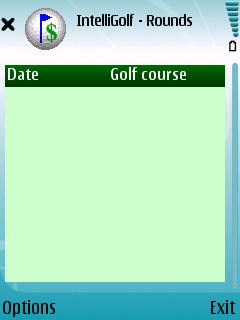
Launch IntelliGolf on your phone by selecting the IntelliGolf program
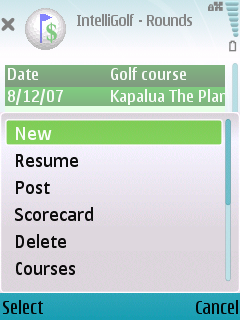
icon. To start a new round, simply choose the New menu choice.
|
|
|
If you have scored other rounds, you may also resume them or delete them from the menu shown here.
|
|
|
|
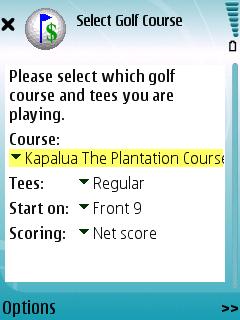
2. Choose the Golf Course.
Now it is time to select, enter, or download your favorite course's digital scorecard. You can either:
- Choose from an existing course on your phone using the Select/Change menu item (see below), or
- Add a new course manually to your phone using the New Course menu item (see below), or
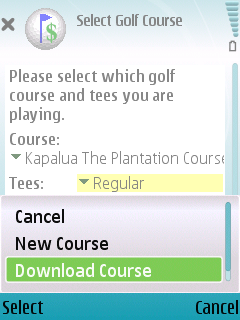
- Wirelessly download a digital course scorecard directly to your phone using the Download Course menu item. There are more instructions on setting up and wirelessly downloading courses below, or
- If you own the Birdie or Eagle edition software you can download courses to your Windows desktop from the Internet and use PC Suite to transfer them to your smartphone. See Section 10 below.
Click here to access the database.
|
|
|
IntelliGolf provides the ability to wirelessly download digital scorecards directly to your phone using your it's Internet access (data) capabilities from
our IntelliCourse™ database. It includes over
27,000+ digital scorecards. Downloading a scorecard from the database will save you up to
300 key strokes as compared to entering all of the hole yardages, par ratings, and hole handicaps manually.
This is another free benefit of using IntelliGolf (i.e. access to the IntelliGolf course database :-).
To download a course, please select the Download Course menu command and follow the Search instructions in the next section.
|
|
|
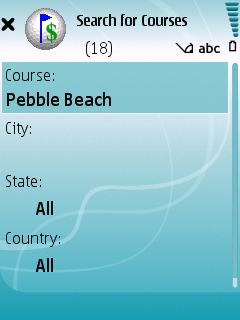
To wirelessly search for a course, please enter (at least) the course's name into the Course field. Entering more
information (e.g. City, State, Country) will help to refine the search, but may also limit the search. As such, entering just
the course's name is best until you get familiar with IntelliGolf. Then, choose the Search command from the menu item.
IntelliGolf will connect to the Internet and search the IntelliGolf database for your course. During the search
you can use the Cancel command to stop the search at any time.
|
|
|
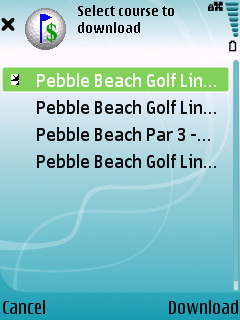
At the completion of the search process, IntelliGolf will automatically present the list of available courses that meet your search criteria.From the course list, please select a course to download and then choose the Download command.
|
|
|
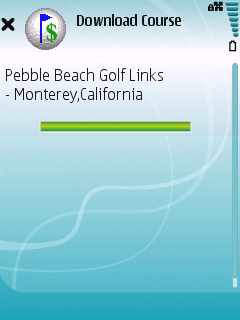
Once the course download begins, you will see a status bar appear that will let you know how the course
download is progressing. This should take less than 1 minute to complete under normal circumstances.
|
|
|
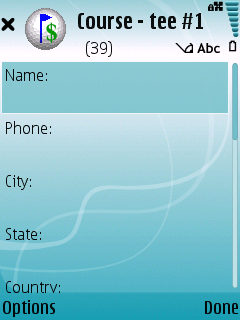
In addition to downloading courses, you may also add a new course by
using the New Course command. A course name and at least one
Tee name (e.g. Blue) are required. The other fields (e.g. Phone,
City, State, etc.) are optional. You may enter information for as
many as 5 tees.
|
|
|
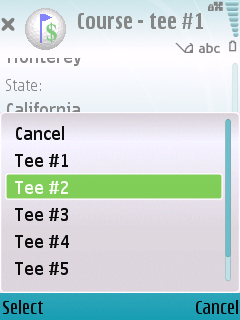
Choose a tee number from the menu to enter information for another
tee box.
|
|
|
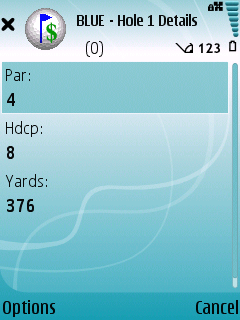
Choosing the Tee Details command will bring up a series of
screens that allow you to enter information for each hole
of the currently selected tee box.
|
|
|
|
3. Add the Players.
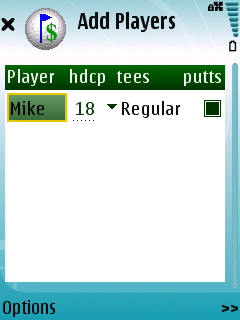
After selecting the course to play, the Add Players screen is
shown with you already selected for the round. To add up to 4 other
players use the Add menu command.
|
|
|
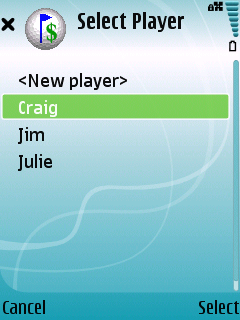
Choose the player you would like to add to the round and then the Select command. If you would like to create a new player, select the <New player> item.
|
|
|
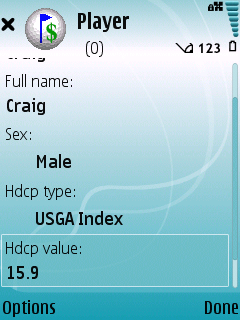
Creating a new player is easy, just fill in the information and choose the Done command.
If you would like to enter a player's handicap, you have four
choices:
- Handicap
Use this selection to define a player's handicap.
- USGA Index
Use this selection for players that have a USGA Handicap Index.
IntelliGolf will compute a course handicap for the golfer using the
formula: Course Handicap = Index * slope / 113. IntelliGolf
supports a men's and women's slope rating for each tee, so be sure to
set the Sex field correctly if you are using this handicap
choice.
- Average Score
Use this selection when a player does not have an established
handicap but they have some idea of what their "average" score is
on this course. IntelliGolf will compute a handicap using the
formula: Handicap = Average Score - Course Par.
- EGA Index
Use this selection for players that have a Handicap Index
issued by a European golf association. IntelliGolf will compute a
course handicap for the golfer using the formula:
Course Handicap = Index * slope / 113 + rating - par.
Note: If you are a "professional" golfer and have a "plus" USGA Index (e.g. +1),
please enter the handicap value number and then check the "Pro/+ hdcp index"
checkbox. Most of us (amateurs :-) think of this as a negative handicap, but it
is actually called a Plus Handicap.
|
|
|
|
4. Add the Side Games.
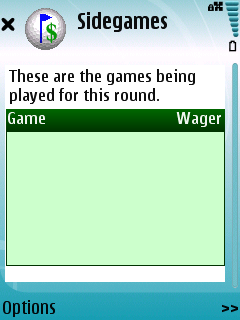
If members of your group have agreed to a friendly side game,
add games here by choose the Add command. If you're
playing "just for fun", enter a wager of 0. This screen is also
used to edit or delete games already being played.
|
|
|
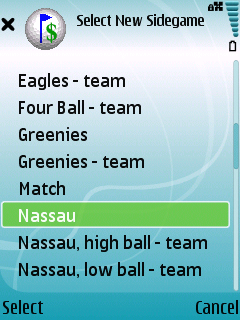
After choosing Add, this screen will allow you to select
a game.
|
|
|
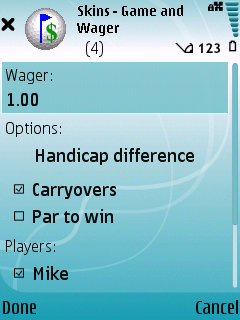
Choose a wager amount and which golfers are playing. Skins can be scored
with or without carryovers, and Nassau can be played with or without
presses.
Handicap scoring can be calculated one of four ways on an individual
game basis:
- Handicap difference
- Full handicaps
- Handicap values
- No handicaps
When using the Handicap difference method, IntelliGolf subtracts the low
handicap from all players' handicaps. The Handicap values
choice lets you enter a handicap value for each player for just this
game.
|
|
|
|
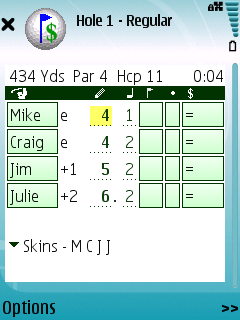
5. Enter Strokes, Putts and Hole Information.
This screen is where you enter the strokes and putts for the
players as well as hole yardage, par and handicap information (if you
have not already done so). Scores and putts are entered on your
phone's keyboard.
Entering the scores shown is as easy as tapping
on the 4, 1, 4, 2, 5, 2, 6, 2 keys or buttons.
On the first hole, choose the the Start command
when you tee off. IntelliGolf will automatically keep track of the
elapsed time of your round in the upper right corner of the screen.
The dots after the hole score column indicate how many strokes that
player gets based on the handicaps for the current sidegame.
Use the trackwheel/trackball to select player scores. Pressing the
"Alt" key while using the trackwheel/trackball allows the other
areas of this screen to be selected. Once selected, press the space
key on your keyboard or use the Select/change command to
see a player's scorecard/statistics, track shots, assign game points,
or view the game scorecard.
|
|
|
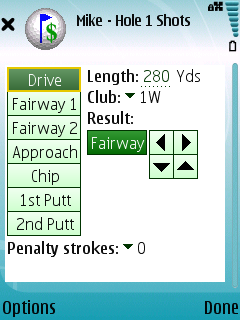
If you select and activate the green rectangle under the flagstick, it
brings up this screen so you can track statistics for your shots.
You may also use the Shots menu choice.
For drive, fairway, approach, and chip shots, you can mark whether
your shot hit the fairway/green, or missed. If you missed, you can mark
whether the miss was left or right and/or short or long (via the arrows).
|
|
|
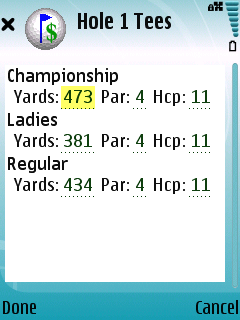
Too see the information for all tee boxes on a hole, use the
Tee Details menu command. If you haven't entered the
tee box information for the course you're playing, that can
be done here too.
|
|
|
|
6. IntelliGPS® (Eagle versions only)
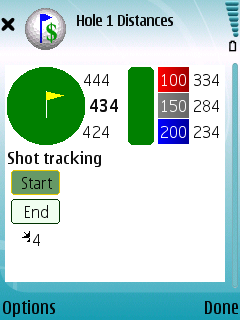
The IntelliGolf Eagle edition and Eagle GPS Option software provides the ability to view GPS distances from tee-to-green. This can be done using industry-leading GPS receivers connected to your smartphone or via the embedded GPS chip in some Nokia-based smartphones (e.g. N95).
This is for GPS-surveyed courses as denoted by the "satellite icon" listed next to the course name. To get to the GPS distances screen, please select the GPS menu command or press the # on your keyboard.
|
|
|
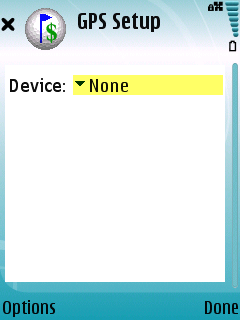
This screen is used to set which GPS receiver (i.e. None, Bluetooth, or Integrated) that you will be using with IntelliGolf.
If you are using a Nokia-based phone that includes an embedded GPS chip (e.g. Nokia N95) please
click here for detailed set-up instructions.
If you will be using an external Bluetooth-based GPS receiver, please refer to the Bluetooth documentation for your phone.
You must turn on Bluetooth communication before starting IntelliGolf. You may also need to add your Bluetooth GPS receiver to the devices
list in your phone's Bluetooth setup screens. After that is done, then use IntelliGolf's Discovery menu item (via Options) to find the GPS receiver
that you will be using with IntelliGolf. There is more on this in our FAQs in the GPS and/or Nokia sections clicking here.
|
|
|
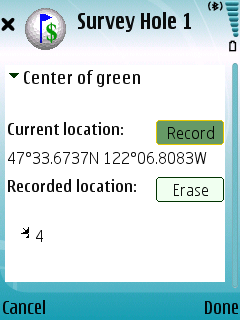
Plus, if your favorite golf course's GPS coordinates aren't uploaded yet, you can use IntelliGolf's handheld/smartphone GPS survey screen (and a GPS receiver) to quickly enter GPS coordinates "during" your round of golf. Or, you can use our Internet-based Course Survey Editor (CSE) to survey your favorite course(s) "before" your round of golf, using Google Earth, from the comfort of your own home). The choice is yours!
For detailed instructions on how to set and GPS-survey your favorite course(s) please click here.
To survey the course you are currently playing using your handheld/smartphone, simply tap on the Record button as you reach the 200, 150, and 100 yard/meter markers, any of three custom fairway points (e.g. creek, sand trap, lake, etc) per hole, and the front, center, and back of the green. IntelliGolf will record these GPS coordinates for you and automatically convert them into distance readings. It's that easy.
|
|
|
|
7. Let IntelliGolf Score the Round.
During the round, IntelliGolf will tally the scores. At any time you
can view a player's scorecard and statistics by selecting their
name (use the Alt+trackwheel/trackball).
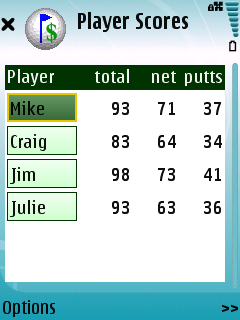
At the end of the round this scoring summary screen is shown.
|
|
|
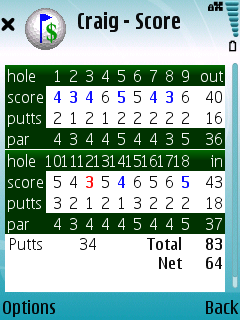
This is the player's scorecard. You may switch to
another player's scorecard selecting their name in
the previous screen with your trackwheel/trackball
and pressing on space key or choosing the
select/change menu choice.
|
|
|
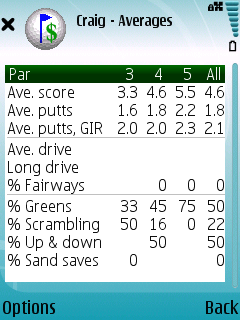
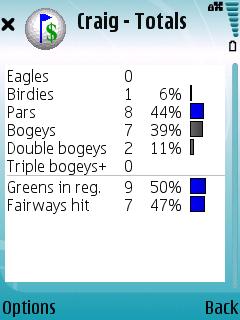
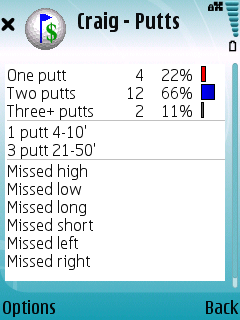
You can also view scoring statics for a player by choosing the
Averages, Totals or Putts menu commands. You may also cycle
through these screens by pressing on the space key on your keyboard.
See how you performed today in an instant with easy to read bar
charts and tables.
|
|
|
View scoring totals for each player.
|
|
|
View putting stats for each player.
|
|
|
|
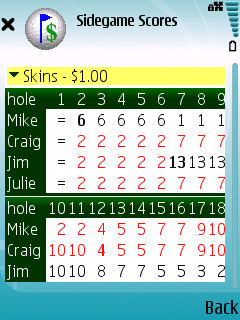
8. Let IntelliGolf Score the Side Games.
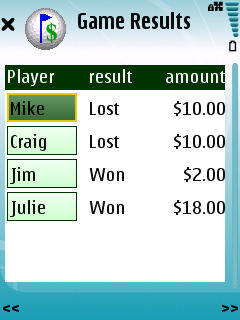
When the round is complete, IntelliGolf calculates each
player's winnings!
|
|
|
This is the game scorecard. You can view this during the round by
selecting (Alt+trackwheel) the last rectangle on the hole scoring
screen.
|
|
|
|
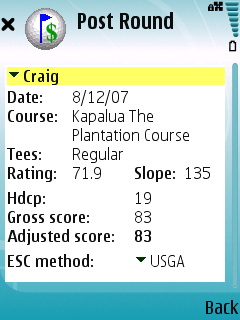
9. Post Your Round
Bring your smartphone with you into your home course clubhouse.
Select a completed round and press the Post menu command.
IntelliGolf will show you all the scoring information you'll
need to post your score for handicap calculations.
|
|
|
10. Synchronize with Desktop PC
If you purchased the IntelliGolf Birdie or Eagle edition software (i.e. not the Eagle OTA software), your Courses, Players, and Rounds can be uploaded and download to/from your Windows-based PC. On your PC, you can then use the IntelliGolf desktop software to review performance charts and graphs, approximate your handicap, print scorecards, export rounds to the web, upload and download digital scorecards from the IntelliGolf course database, and more...
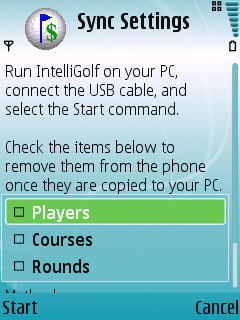
To upload/download your courses, players, and rounds to/from the IntelliGolf desktop software, please perform the
steps listed below.
- Connect your phone to your PC with its USB cable.
- Select "PC Suite" on your smartphone.
- Start the IntelliGolf desktop (PC) software.
- Click just to the left of the courses, rounds and players (PC) that you want to synchronize to your smartphone. A blue sync icon will appear.
- Start the IntelliGolf smartphone software. Choose "Options" and then the "Synchronize" menu command.
- Choose the "Start" menu command in IntelliGolf on the Sync Settings screen and follow the on-screen instructions.
IntelliGolf will now upload/download your courses, players, and
rounds to/from your PC.
You are now ready to review some great statistics, charts, and
graphs using the IntelliGolf desktop software.
Please click here to view tour
for the desktop software.
|
Congratulations, you are now ready to start using IntelliGolf!
Have a Great Round!

|
|